
Article directory
We usually do external chain promotion and friendship link optimization need to be monitored.
If we lose our backlinks and reciprocal links, our SEO ranking will also decline. Therefore, monitoring the status of backlinked website pages is very important.
Why Use Uptime Kuma to Monitor Websites?
How to monitor backlinks for SEO purposes?
After adding backlinks and exchanging reciprocal links, we usually configure website monitoring on the Uptime Robot cloud monitoring platform to check the connectivity of the backlink pages on each website.
However, as the number of external chains and friend chains increases, the Uptime Robot cloud platform has a limit on the number of monitoring items, and you must upgrade and pay to continue adding more cloud monitoring items.
Therefore, we can use the open-source Linux cloud server monitoring software tool – Uptime Kuma.
What software is Uptime Kuma?
Uptime Kuma is an open source Linux server monitoring tool with similar functions to Uptime Robot.
Compared to other similar website monitoring tools, Uptime Kuma supports self-hosted services with fewer restrictions.
This article will introduce the installation and use of Uptime Kuma.
How to install Uptime Kuma monitoring tool?
Uptime Kuma, supports Docker installation.
The following is a tutorial on the installation steps of Uptime Kuma.
The following commands are for installing the program via CLI [Ubuntu/ CentOS ]. Interactive CLI installer, with or without Docker support ▼
curl -o kuma_install.sh http://git.kuma.pet/install.sh && sudo bash kuma_install.sh
- It is not recommended to use the above installation command: because Uptime Kuma is installed in a non-Docker way, it is easy to fail the installation.
- (We recommend the installation command below)
Since you need to install Docker before installing Uptime Kuma using Docker, install Docker first.
Install Docker and Docker-compose
Update and install necessary software ▼
apt-get update && apt-get install -y wget vim
If a 404 error occurs during the update, please check the solution below▼
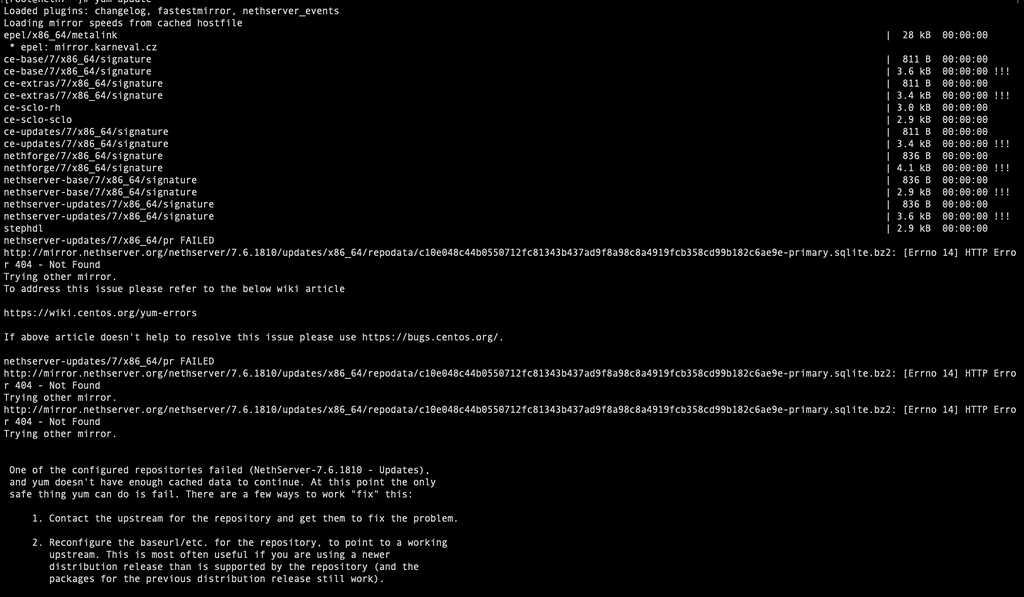
Install Docker
If it is a foreign server, please use the following command ▼
curl -sSL https://get.docker.com/ | sh
If it is a domestic server in China, please use the following command ▼
curl -sSL https://get.daocloud.io/docker | sh
Set Docker to start automatically at boot ▼
systemctl start docker

systemctl enable docker
Install Docker-compose
If it is a foreign server, please use the following command ▼
sudo curl -L "https://github.com/docker/compose/releases/download/1.24.1/docker-compose-$(uname -s)-$(uname -m)" -o /usr/local/bin/docker-compose
sudo chmod +x /usr/local/bin/docker-compose
If it is a domestic server in China, please use the following command▼
curl -L https://get.daocloud.io/docker/compose/releases/download/v2.1.1/docker-compose-`uname -s`-`uname -m` > /usr/local/bin/docker-compose
chmod +x /usr/local/bin/docker-compose
Restart the docker service command▼
service docker restart
How to install Uptime Kuma free website status monitoring tool?
docker volume create uptime-kuma
docker run -d --restart=always -p 3001:3001 -v uptime-kuma:/app/data --name uptime-kuma louislam/uptime-kuma:1- Then, you can pass
IP:3001Visit Uptime-Kuma.
If you have enabled the CSF firewall, you may need to open port 3001 on the CSF firewall▼
vi /etc/csf/csf.conf
# Allow incoming TCP ports
 TCP_IN = "20,21,22,2812,25,53,80,110,143,443,465,587,993,995,2030,2031,2082,2083,2086,2087,2095,2096,3001"
Restart the CSF firewall ▼
csf -rInstall Nginx Proxy Manager
Nginx Proxy Manager is a Docker-based reverse proxy software.
Since Nginx Proxy Manager is not necessary, you can skip not installing Nginx Proxy Manager if you don’t want to waste time.
Create directory ▼
mkdir -p data/docker_data/npm
cd data/docker_data/npm
Create docker-compose.yml file ▼
nano docker-compose.yml
Fill in the following content in the file, then press Ctrl+X to save, press Y to exit ▼
version: "3"
services:
  app:
    image: 'jc21/nginx-proxy-manager:latest'
    restart: unless-stopped
    ports:
      # These ports are in format :
      - '80:80' # Public HTTP Port
      - '443:443' # Public HTTPS Port
      - '81:81' # Admin Web Port
      # Add any other Stream port you want to expose
      # - '21:21' # FTP
    environment:
      DB_MYSQL_HOST: "db"
      DB_MYSQL_PORT: 3306
      DB_MYSQL_USER: "npm"
      DB_MYSQL_PASSWORD: "npm"
      DB_MYSQL_NAME: "npm"
      # Uncomment this if IPv6 is not enabled on your host
      # DISABLE_IPV6: 'true'
    volumes:
      - ./data:/data
      - ./letsencrypt:/etc/letsencrypt
    depends_on:
      - db

  db:
    image: 'jc21/mariadb-aria:latest'
    restart: unless-stopped
    environment:
      MYSQL_ROOT_PASSWORD: 'npm'
      MYSQL_DATABASE: 'npm'
      MYSQL_USER: 'npm'
      MYSQL_PASSWORD: 'npm'
    volumes:
      - ./data/mysql:/var/lib/mysql
run▼
docker-compose up -d
If an error message similar to the following appears: "Error starting userland proxy: listen tcp4 0.0.0.0:443: bind: address already in use"▼
[root@ten npm]# docker-compose up -d
npm_db_1 is up-to-date
Starting npm_app_1 ... error

ERROR: for npm_app_1 Cannot start service app: driver failed programming external connectivity on endpoint npm_app_1 (bd3512d79a2184dbd03b2a715fab3990d503c17e85c35b1b4324f79068a29969): Error starting userland proxy: listen tcp4 0.0.0.0:443: bind: address already in use

ERROR: for app Cannot start service app: driver failed programming external connectivity on endpoint npm_app_1 (bd3512d79a2184dbd03b2a715fab3990d503c17e85c35b1b4324f79068a29969): Error starting userland proxy: listen tcp4 0.0.0.0:443: bind: address already in use
ERROR: Encountered errors while bringing up the project.
- It means that port 443 is already occupied, and the docker-compose.yml file just created needs to be edited.
Port 443 needs to be changed to 442 ▼
- '442:442' # Public HTTPS Port
Then, run the command again docker-compose up -d
An error message will appear:“Error starting userland proxy: listen tcp4 0.0.0.0:80: bind: address already in use"
Also need to change port 80 to 882 ▼
- '882:882' # Public HTTP Port
by opening http:// IP:81 Visit Nginx Proxy Manager.
For the first login, use the default initial account and password▼
Email: [email protected]
Password: changeme
- After logging in, please be sure to change your email address and password immediately.
Reverse proxy Uptime Kuma
After installing Uptime Kuma, the default is to useIP:3001Visit Uptime Kuma.
We can access the domain name and configure the SSL certificate through reverse proxy, just like the URL demonstrated earlier.
Next, we will perform reverse generation operations, using the previously built Nginx Proxy Manager.
by http:// IP:81 Open Nginx Proxy Manager.
After logging in for the first time, you need to change the user name and password, please configure it yourself.
Next, the operation steps of Nginx Proxy Manager are as follows:
Step 1:turn on Proxy Hosts ▼
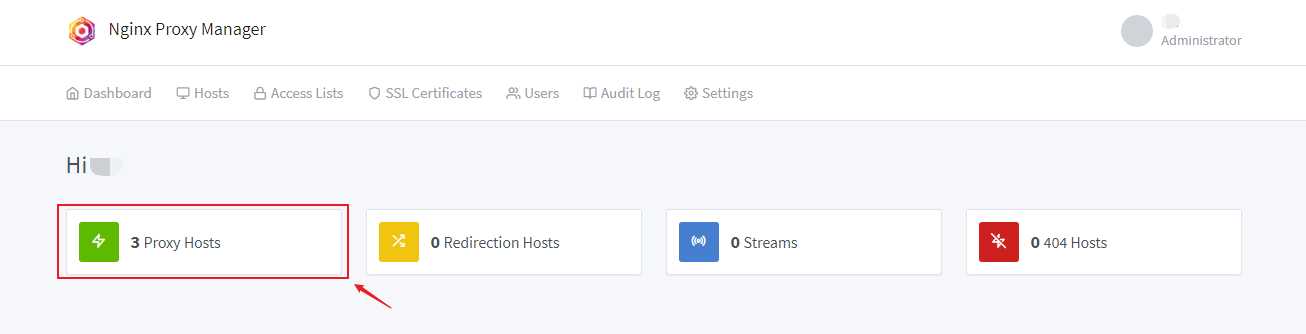
Step 2:Click on the top right corner Add Proxy Hosts▼

Step 3: Configure according to the figure,Click Save save ▼
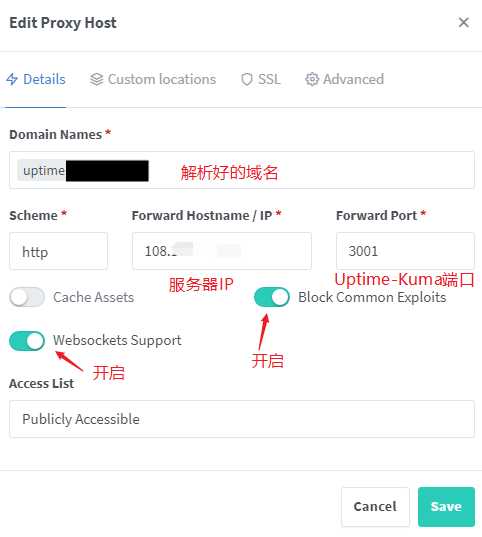
Step 4:Click onEidtOpen the configuration page ▼

Step 5: Issue an SSL certificate and enable forced HTTPS access ▼
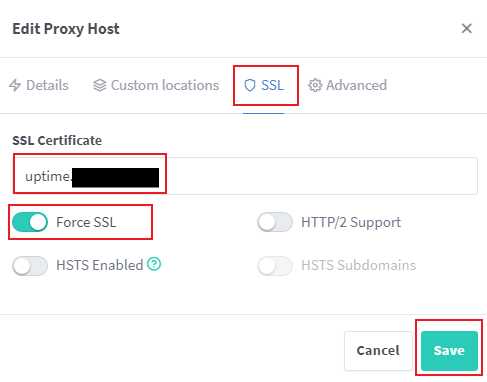
- At this point, the reverse generation is completed, and then you can use the domain name you just resolved to access Uptime Kuma.
- Uptime Kuma configuration is very simple.
- It has a Chinese interface, I believe you will be able to use it soon.
Uptime Kuma Useful PM2 Commands
Start, stop, and restart commands of Uptime Kuma (this command is dedicated to non-Docker installation)▼
pm2 start uptime-kuma
pm2 stop uptime-kuma
pm2 restart uptime-kuma
View the current console output of Uptime Kuma (this command is dedicated to non-Docker installation)▼
pm2 monit
Run Uptime Kuma at startup (this command is dedicated to non-Docker installations) ▼
pm2 save && pm2 startup
How to set up automatic backup of Uptime Kuma monitoring software?
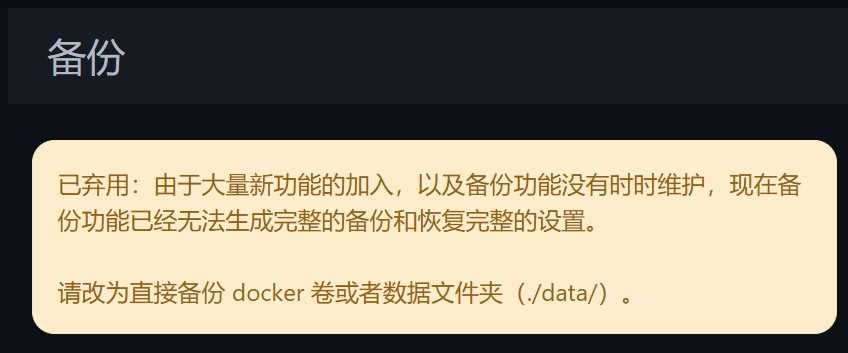
Because there may be some problems with the backup function in the background settings of Uptime Kuma, the developer has not maintained the backup function. Now the backup function is no longer able to generate a complete backup and restore all settings...
Want to know more about how to deal with Uptime Kuma backup feature deprecation? Click the link below to continue reading the detailed tutorial ▼
How to uninstall Uptime Kuma monitoring software?
If Uptime Kuma wasn't installed using Docker , how do I uninstall it?
For example, if you use this command to install in a non-Docker way▼
curl -o kuma_install.sh http://git.kuma.pet/install.sh && sudo bash kuma_install.sh
To uninstall Uptime Kuma, use the following command ▼
- Stop running
pm2 stop uptime-kuma - delete directory
rm -rf /opt/uptime-kuma
How to uninstall Uptime Kuma if you install it using Docker?
Run the following query command▼
docker ps -a
- write down your
kumaThe name of the container, which may beuptime-kuma
stop command ▼
- Please send
container_nameChange to the above querykumaThe name of the container.
docker stop container_name
docker rm container_name
Uninstall Uptime Kuma ▼
docker volume rm uptime-kuma
docker rmi uptime-kuma
Conclusion
The interface of Uptime Kuma is clean and simple, and it is very easy to deploy and use.
Uptime Kuma is a very good choice if you don't have high requirements for website monitoring.
Hopefully, the article "Uptime Kuma Free Website Status Monitoring Tool for Linux Server Monitoring" shared on Chen Weiliang's blog ( https://www.chenweiliang.com/ ) will be helpful to you.
Feel free to share this article's link: https://www.chenweiliang.com/cwl-29041.html