
Article directory
Encountering a WordPress error: "Is its parent directory writable by the server?"
Our detailed guide will teach you how to quickly fix this problem, get your website upload function back to normal, and solve your troubles!
WordPress upload path setting problem
When you upload a file in WordPress, a pop-up pops upIs its parent directory writable by the server?" error message, this may be because the default upload path is incorrect.
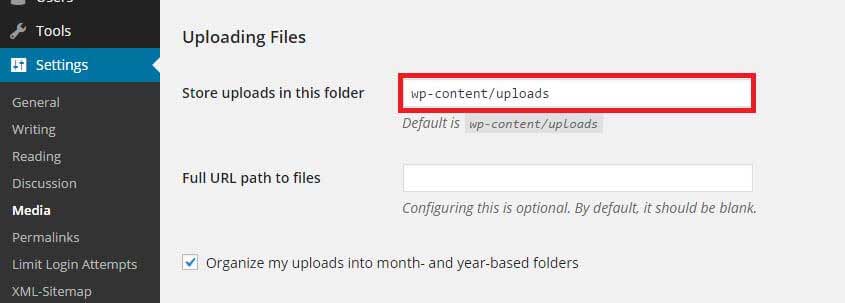
In WordPress settings, navigate to the Media section. Here you will see the file upload path settings. Change (or clear) the default upload path to the default value to solve this problem. This is a simple solution.
- WordPress Settings → Media → File Upload, change the default upload path to the default value.
SSH connection and directory permission adjustment
If the above solution does not solve the problem, a slightly more complicated operation is required. You need to connect to your VPS server via SSH to change the owner and permissions of the uploads directory.
First, connect to your VPS via SSH.
Once connected, navigate to the wp-content folder inside your WordPress installation directory.
cd /home/用户名/web/域名文件夹/public_html/wp-content/
Change the uploads directory owner
To ensure that the server has permission to write to the uploads directory, you need to change the owner of the uploads directory to your username.
You can use the following command:
chown -R 用户名:用户名 uploads
- This step ensures that the uploads directory and all its subdirectories are owned by your username.
Adjust directory permissions
Sometimes, even if you change the directory owner, inaccurate permissions can cause problems.
Inside the wp-content folder, you can adjust permissions using the following command:
chmod 755 -R uploads
- This command sets the permissions of the uploads directory and all its subdirectories to 755, which means read, write, and execute permissions.
Quickly repair directory permissions command:
cd /home/用户名/web/域名文件夹/public_html/wp-content/
chown -R 用户名:用户名 uploads
chmod 755 -R uploads
Change directory and file permissions in batches
To ensure that the permissions for all files and directories are accurate, you can also use the find command to batch change permissions:
find /home/用户名/web/域名文件夹/public_html/ -type d -exec chmod 755 {} \;
- Here,
{}Is a placeholder for each file or directory found by the find command. \;Indicates the end of the -exec action, ensuring that the find command is executed accurately.
Change file permissions
Likewise, for files, you can set permissions to 644 with the following command:
find /home/用户名/web/域名文件夹/public_html/ -type f -exec chmod 644 {} \;
- This will ensure that each file has accurate read and write permissions.
Solution using XAMPP (local installation)
If you have installed WordPress locally via XAMPP and are encountering annoying error messages, and the above methods have failed, you may need to reset the ownership of your installation to "nobody. "
To run the command line/terminal : On a Mac: Applications => Utilities => Terminal
On Windows: Start Menu => All Programs => Accessories => Command Prompt
After replacing your actual WordPress installation directory, run the following command:
sudo chown -R nobody:staff /applications/xampp/xamppfiles/htdocs/wordpress
I hope one of these methods can successfully save you and solve the annoying problem of being unable to create a directory in WordPress. 🎉
Conclusion
By following the above steps, you should be able to resolve the "Is its parent directory writable by the server?"mistake.
These methods are not only simple and practical, but also can help you quickly find the root cause of the problem and solve it.
I hope this article was helpful! If you have any further questions, feel free to leave them in the comments.
Hopefully, the article "Solving the WordPress 'Is its parent directory writable by the server?' error" shared on Chen Weiliang's blog ( https://www.chenweiliang.com/ ) will be helpful to you.
Feel free to share this article's link: https://www.chenweiliang.com/cwl-31821.html