
Article directory
- How to use KeePass?Chinese Chinese green version language pack installation settings
- How to use Android Keepass2Android? Automatic synchronization filling password tutorial
- How to backup KeePass database?Nut Cloud WebDAV synchronization password
- How to synchronize mobile phone KeePass?Android and iOS tutorials
- How does KeePass synchronize database passwords?Automatic synchronization through Nut Cloud
- KeePass commonly used plug-in recommendation: introduction to the use of easy-to-use KeePass plug-ins
- KeePass KPEnhancedEntryView plugin: Enhanced record view
- How to use KeePassHttp+chromeIPass plugin to autofill?
- The Keepass WebAutoType plugin automatically fills in the form based on the URL globally
- Keepass AutoTypeSearch plugin: global auto-input record does not match pop-up search box
- How to use KeePass Quick Unlock plugin KeePassQuickUnlock?
- How to use the KeeTrayTOTP plugin? 2-step security verification 1-time password setting
- How does KeePass replace username and password by reference?
- How to sync KeePassX on Mac?Download and install the Chinese version of the tutorial
- Keepass2Android plugin: KeyboardSwap automatically switches keyboards without Root
- KeePass Windows Hello fingerprint unlock plugin: WinHelloUnlock
- solveKeePass2. Android causes WebDAV synchronization conflicts: One-click HTTP 409 fix tutorial
Comprehensive Analysis and Solutions for KeePass2 Android WebDAV Synchronization Error 409
Encountering an HTTP 409 conflict during KeePass2Android sync? Follow this tutorial to disable SAF, clear the cache, and rename .tmp files. WebDAV sync will resume normally in 3 minutes. This tutorial is applicable to all platforms including Nutstore, Nextcloud, and Synology, completely eliminating the "Unable to save to source file" error.
You might think the password database synchronization failure is a problem with the cloud service? Actually, the truth is often more brutal—it's a conflict between the application mechanism and the server logic that's causing the problem.
This is the story behind the "Unable to save to source file: 409" error that users of the new KeePass2Android frequently encounter when using WebDAV.
Problem Overview: Why does a 409 error occur?
After merging the database on your mobile device and clicking save, a cold, unforgiving message suddenly pops up: "Unable to save to source file: 409".
Meanwhile, a strange temporary file was quietly generated on the WebDAV server:mykeepass.kdbx.tmp.xxxxxxx.
When KeePass 2 on the desktop is synchronized again, entries may even be duplicated, as if the database itself is "split".
At the heart of all this is the HTTP 409 Conflict.
The true meaning of HTTP 409
HTTP 409 is not a random error code; it means that "the request conflicts with the current state of the resource on the server".
In other words, the file version uploaded by the client is inconsistent with the file version (ETag) on the server.
This is like two people editing the same document at the same time. One saves the changes, and when the other tries to save, they are told: "There is a conflict, you cannot overwrite."
KeePass2Android's triggering logic
Starting with KeePass2Android 2.0, the application has enabled Storage Access Framework (SAF) by default.
This mechanism was originally intended to make Android manage file access more securely, but it has become a stumbling block in WebDAV scenarios.
Why? Because SAF caches file handles, causing the version information uploaded to be inconsistent with the server's.
WebDAV therefore refused to cover and returned a 409 error.
Even worse, KeePass2Android successfully uploaded the temporary file, but could not rename it. .kdbxIt left behind a pile of remnants .tmp file.
Universal Solution: Resolve All WebDAV Conflicts in Three Steps
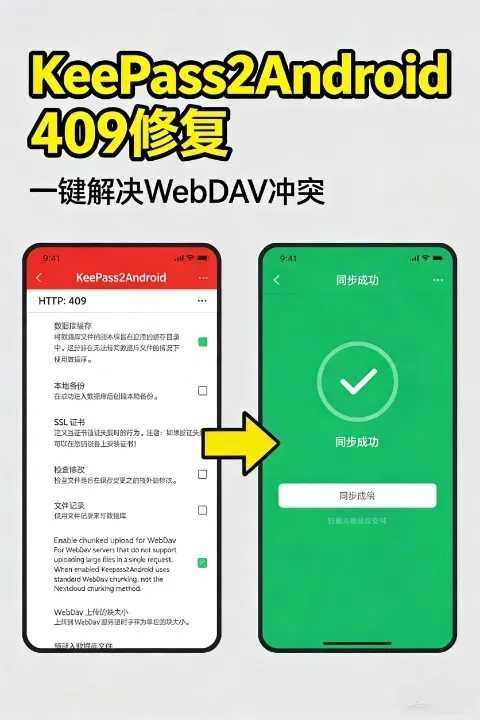
Step 1: Disable SAF file access
Go to KeePass2Android Settings → Applications → File Operations.
Locate "File Records (Use SAF / Storage Access Framework)" and close it directly.
This would allow the application to revert to the traditional streaming read/write mode, bypassing the SAF caching issue.
Step 2: Clear the cache and reload the database
Go to Settings → Advanced → Clear cache database copy.
Reconnect to WebDAV, open the database, and synchronize and save again.
At this point, the 409 error will usually disappear.
Step 3: Restore temporary files
If it has already been generated on the server .tmp Don't panic about the file.
Download the file and rename it. .kdbxUse KeePass on Windows to open the verification.
After confirming that everything is correct, upload and overwrite the original database.
Prevention and Best Practices: Making Synchronization More Robust
- Sync when openIt is recommended to enable this feature to ensure that the latest version is used each time.
- Sync when closedIt is also recommended to enable this feature to avoid leaving any unuploaded modifications.
- Save delayAfter saving on the desktop, wait at least 10 seconds before syncing on the mobile device.
- Automatic backupEnable "Automatic backup on save" on the desktop to prevent accidental overwriting.
- Cloud version controlEnable the historical version feature for Nutstore, Nextcloud, etc.
- Avoid editing simultaneouslyDo not modify the same database on both the phone and the desktop simultaneously.
- Clear cache regularlyKeePass2Android → Settings → Advanced → Clear cached copies.
Optional Enhancement: Smarter Synchronization Method
Desktop using the WebDAV synchronization plugin
KeePass (Windows) can install plugins:
- KeeAnywhere (supports OneDrive/Google Drive/Dropbox)
- Sync for WebDAV (Optimized version detection and merging logic)
These plugins can automatically detect file version changes and reduce conflicts.
Synchronize using a cloud client
Another stable solution is to let the cloud-based app handle the synchronization:
Install the Nutstore/Nextcloud/Synology Drive app on Android.
Open the local sync directory in KeePass2Android .kdbx file.
In this way, uploading and downloading are both handled by the cloud-based app, completely avoiding the WebDAV file locking issue.
Summary: The Truth and Solution to Error 409
- Root of the problemThe new version of KeePass2Android enables SAF file access, which conflicts with the WebDAV file locking mechanism.
- ErrorUpload failed, HTTP 409 Conflict error message, generation...
.tmpTemporary file. - Scope of applicationAll WebDAV services (NutCloud, Nextcloud, Synology, Box, OwnCloud, etc.).
- SolutionTurn off SAF → Clear cache → Resynchronize.
- Recommended settingsEnable synchronization options, enable version control, and retain automatic backups.
Conclusion: My Views and Reflections
From a technological philosophy perspective, a 409 error is not simply a bug, but rather a "cognitive conflict" between systems.
The security logic of Android SAF and the version verification mechanism of WebDAV are essentially two different orders colliding.
The solution is not to overturn any of them, but to find a balance that allows the tool to return to its most essential function—stable and reliable synchronization.
In the world of information security, databases are the core of digital assets.
A stable synchronization mechanism is the cornerstone that ensures this asset is not fragmented.
Therefore, understanding and resolving a 409 error is not just about fixing a bug, but also about gaining a deeper understanding of the digital order.
Key Takeaways and Call to Action
- Error 409 is caused by a conflict between SAF and WebDAV.
- Disabling SAF file access is the most direct solution.
- Regularly clearing the cache, enabling version control, and automatic backups are best practices.
- Using plugins or cloud clients for synchronization can further improve stability.
If you are experiencing a 409 error, turn off SAF now, clear your cache, and resync.
Return your KeePass2Android to stability and make your password repository a truly impregnable digital fortress.
Hopefully, the article "Solving WebDAV Synchronization Conflicts Caused by KeePass2Android: One-Click HTTP 409 Repair Tutorial" shared on Chen Weiliang's blog ( https://www.chenweiliang.com/ ) will be helpful to you.
Feel free to share this article's link: https://www.chenweiliang.com/cwl-33495.html