
Article directory
Want to build ultra-low-cost storage with Backblaze B2 but don't know how to bind a domain name? This article will guide you step-by-step through the entire process of integrating a custom domain name with Cloudflare using Backblaze.
This detailed breakdown of DNS resolution, SSL certificate configuration, and routing rule settings will guide you to perfectly utilize the Bandwidth Alliance and achieve 100% free downlink traffic. Unlock this advanced, trouble-free configuration guide now!
A few days ago I was messing around with image hosting, trying to move all the images from my blog to Backblaze B2, and use Cloudflare CDN to speed them up.
As a result, this whole thing took up the entire afternoon.
Online tutorials were scattered and disjointed, with many missing or incorrect steps, which was making me quite frustrated. After finishing, I decided to go through the entire process from beginning to end to prevent others from making the same mistakes.

In short: this solution is truly excellent. Backblaze B2 offers a free daily allowance, and combined with Cloudflare's CDN caching, the speed is fast enough, and the cost is almost zero. After a month of running it, the bill is zero (exceeding the free allowance might only cost a few cents at most).
Alright, enough chit-chat, let's get started.
The first step is to register a Backblaze account and a Cloudflare account. This is straightforward; anyone can do it.
Create a storage bucket
After registering, go to the Backblaze backend, click My Account, then Buckets, and then Create a Bucket.
You can name the bucket anything; the key is to select "Public" for access permissions. Leave everything else as default.
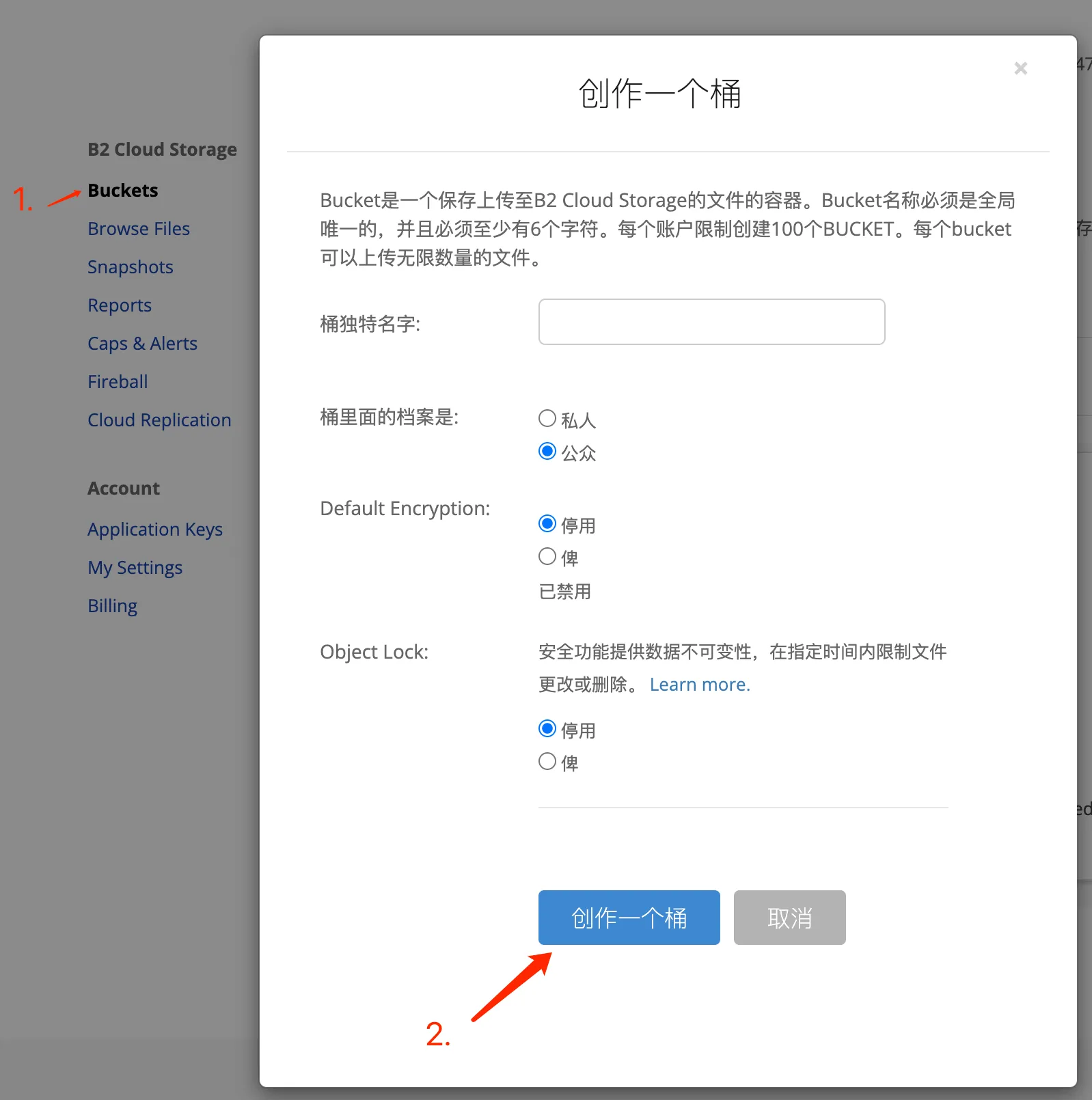
After creating the image, you can upload an image to see if it's accessible. Clicking on the image details will show a link, which will look something like this:
https:// f005.backblazeb2. com/file/bucket-name/xxxxx.jpg
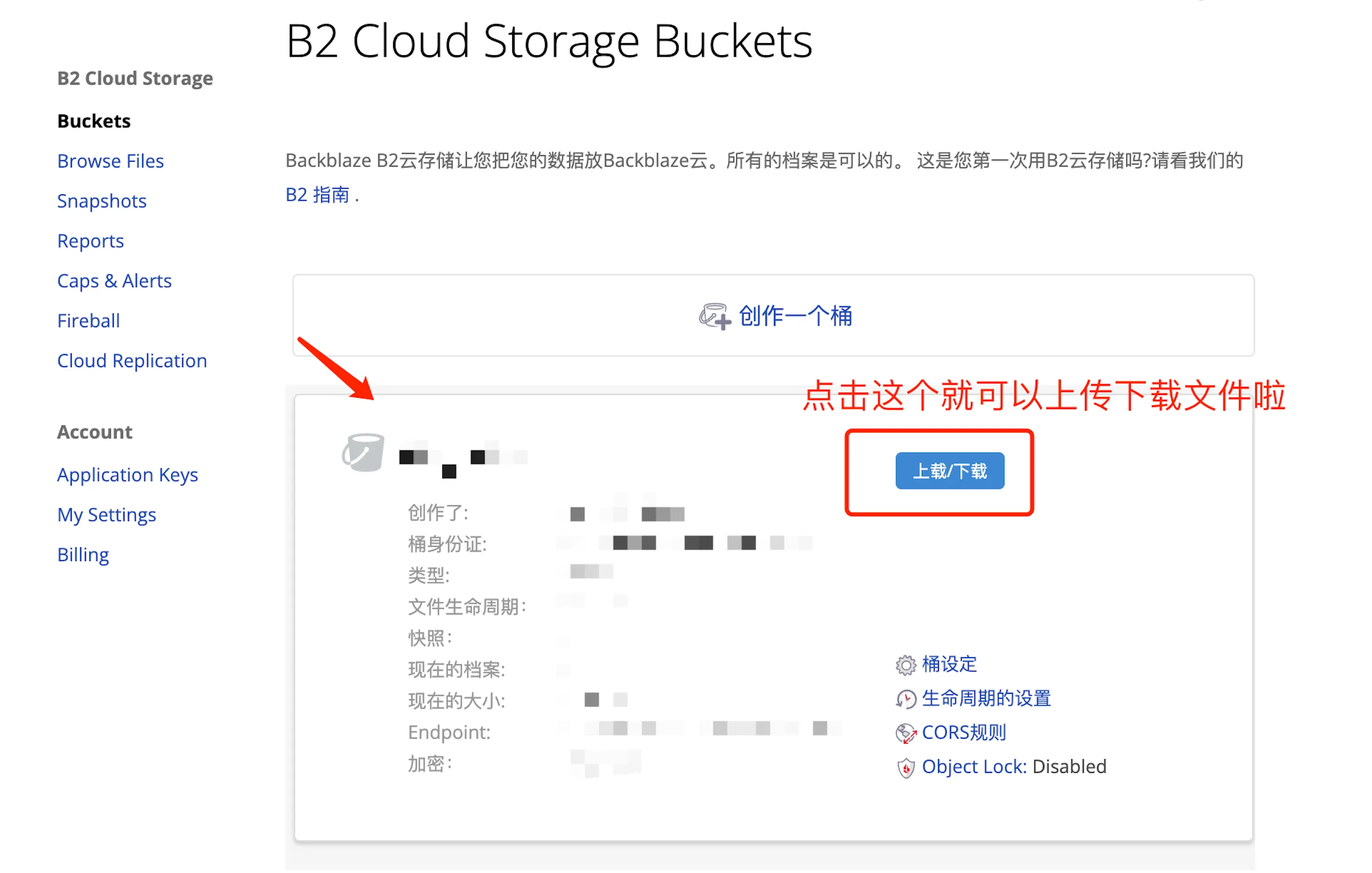
This domain name was randomly assigned by Backblaze, and frankly, it's not very aesthetically pleasing, plus it directly exposes your storage bucket information. So, the next step is to switch to Cloudflare.
DNS
To add your site in Cloudflare, if you've already purchased the domain elsewhere, select "Add Site" and change the DNS to Cloudflare's nameserver, such as danica.ns.cloudflare.com. It will provide detailed instructions on how to do each step.
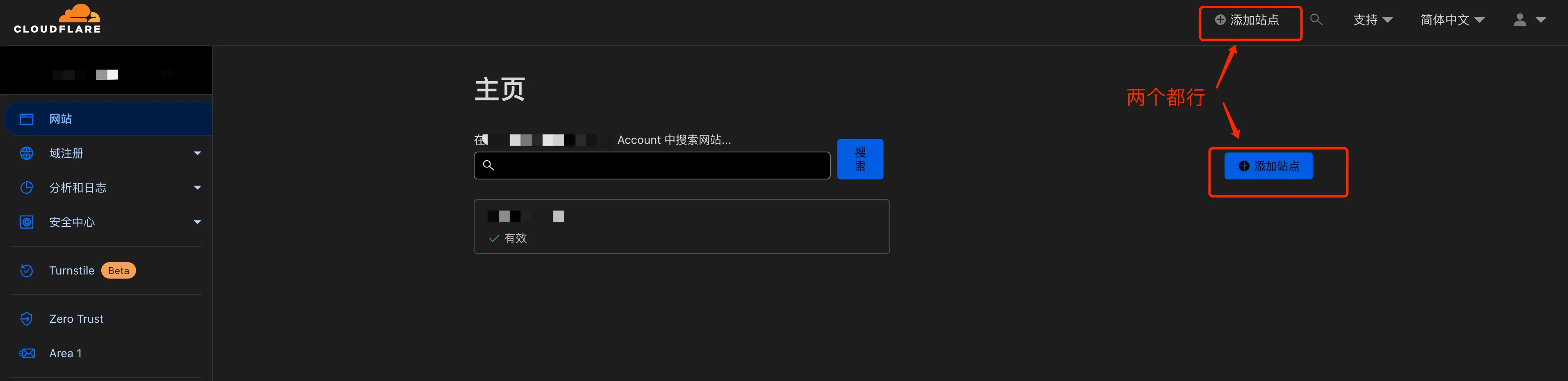
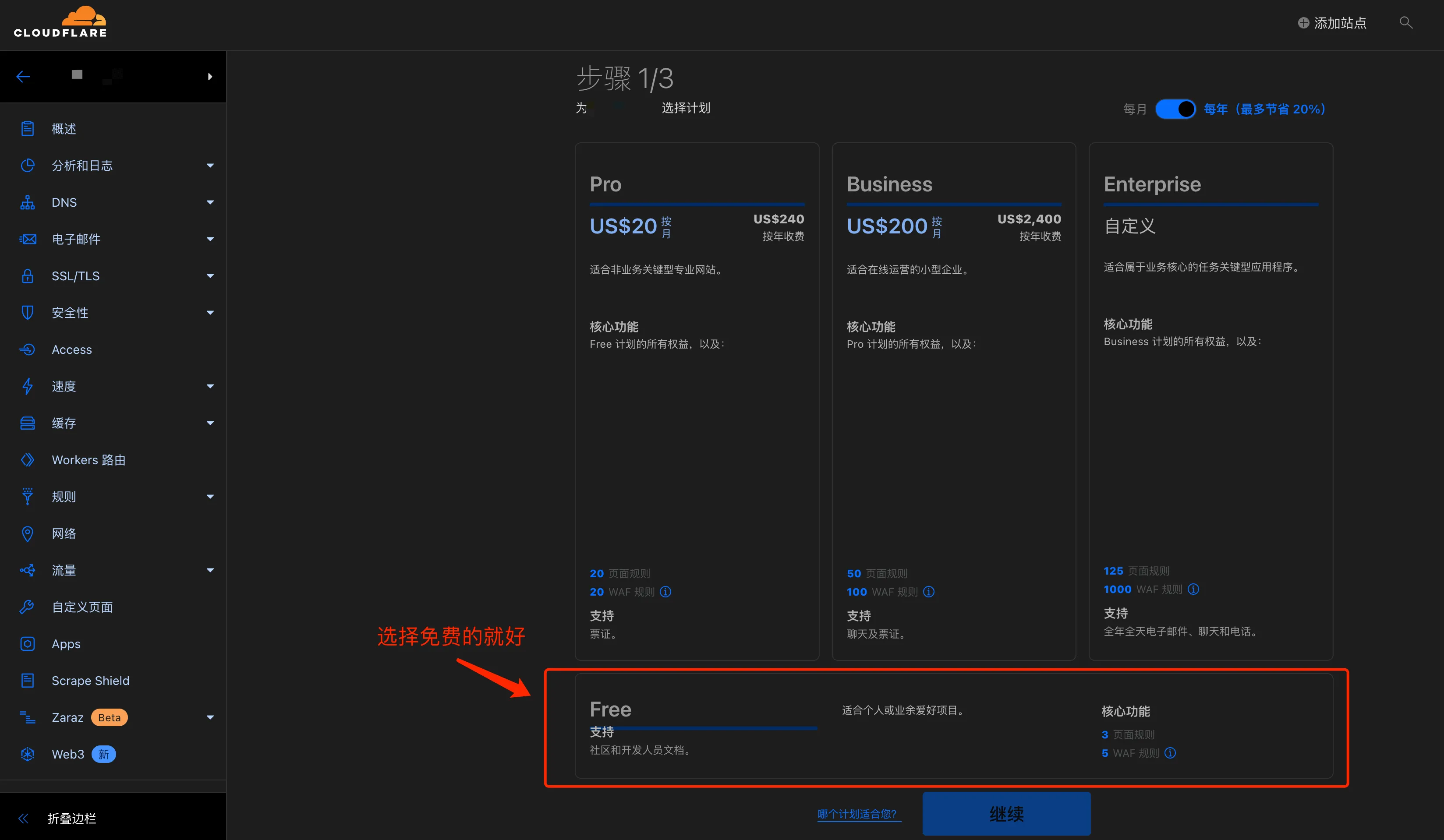
After adding the site, add a DNS record.
Select CNAME as the type, enter your desired subdomain as the name (e.g., oss), and enter the domain you just obtained from Backblaze as the target (e.g., f005.backblazeb2.com). Remember to enable the orange cloud icon for proxy status; this is necessary to use Cloudflare's CDN.
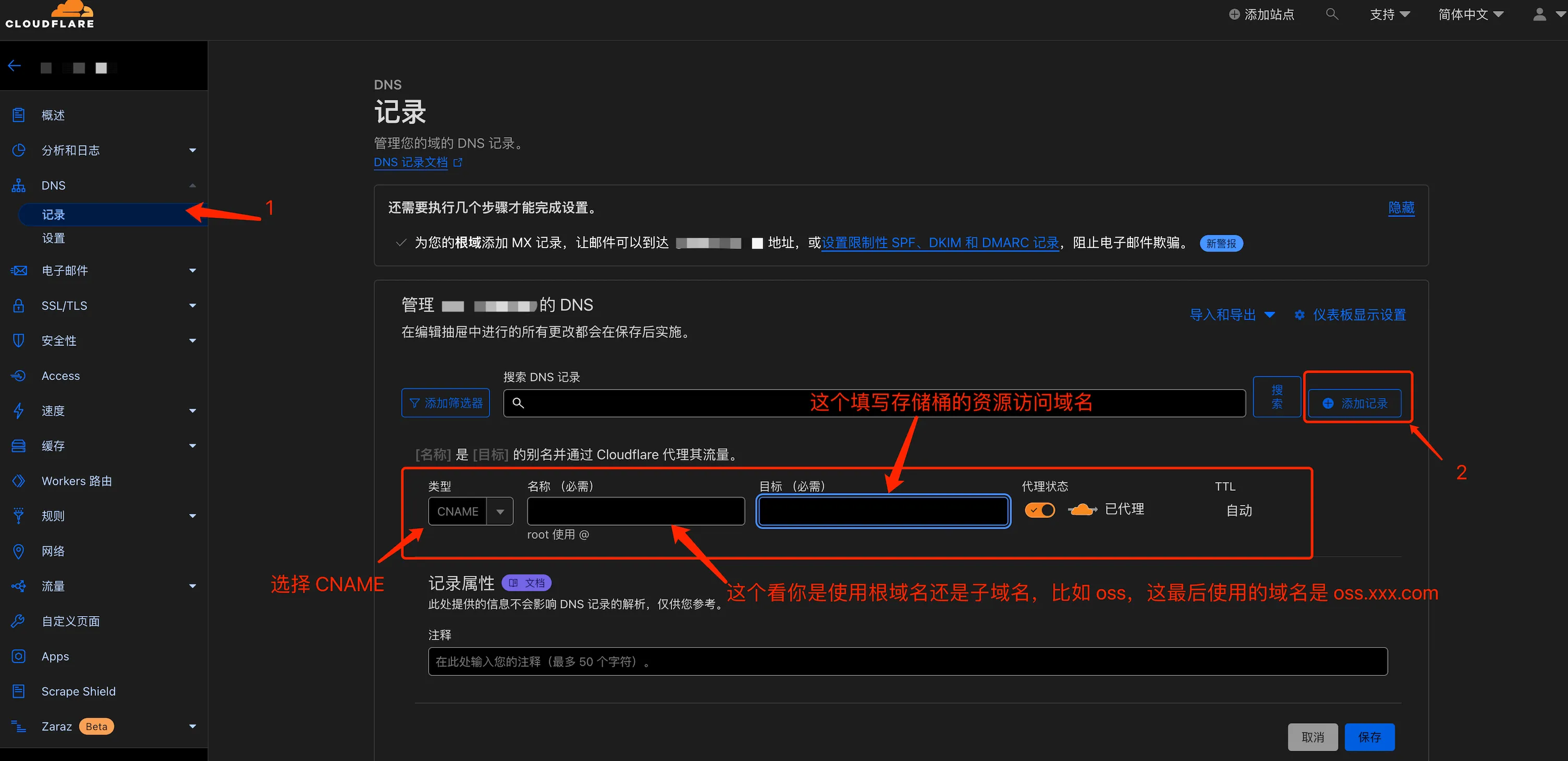
At this point, you can access the images through your own domain, like this:
https:// oss.xxx .com/file/bucket-name/xxxxx.jpg
It looks much better than the original random domain name, but it's still not enough. Because the URL still contains the string "/file/bucket-name/", which is both ugly and exposes your bucket structure, making it feel insecure.
Configure automatic SSL/TLS (Recommended)
SSL/TLS encryption mode and origin connection settings: Choose whether traffic between the guest, Cloudflare network, and your origin server is encrypted, and whether the origin certificate is verified.
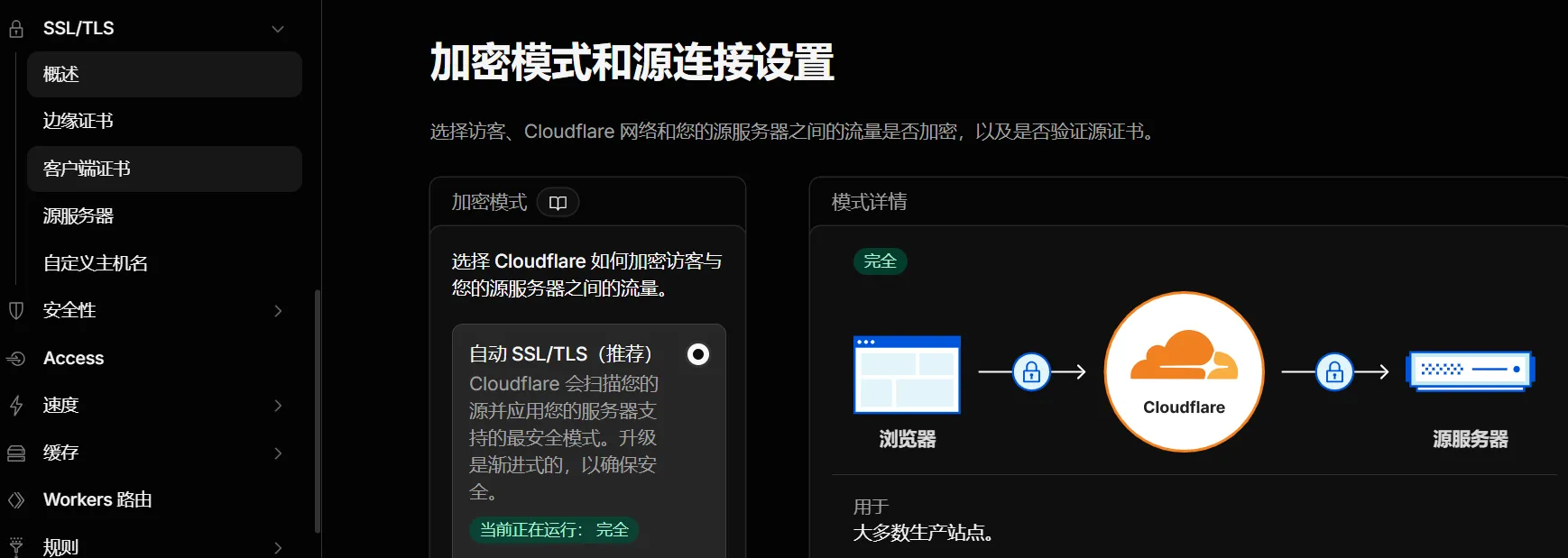
- Choose Cloudflare to encrypt traffic between visitors and your origin server.
- Here, select "Automatic SSL/TLS (Recommended)".
Rewrite URL path
Go to the Cloudflare backend, click Rules, then Overview, then URL Rewrite Rules, and create a new rule.

You can name the rule anything, select "Do not include" for the request URL, and then fill in /file/. This means that only requests that do not include the /file/ path will be processed.
However, if you want the rules to be more precise, you can directly match that subdomain.
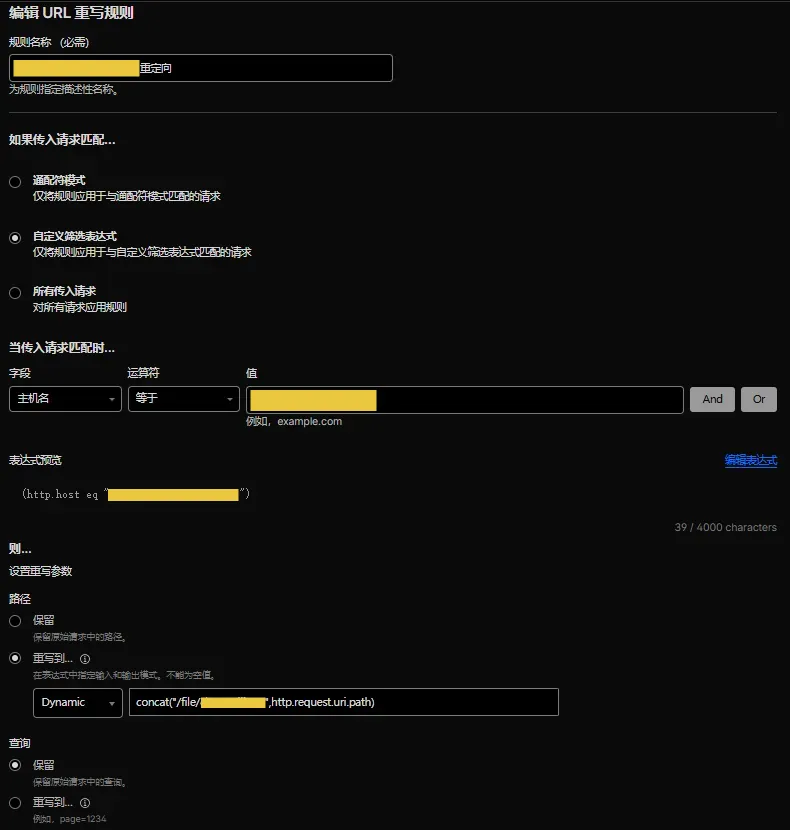
Fill in the last box with:
concat(/file/桶名, http.request.uri.path)
Then deploy.
After that, the access result will be as follows:
https:// oss.xxx.com/ xxxxx.jpg
It's spotless, with nothing superfluous about it.
comfortable.
Clean up unnecessary response headers
This step is optional, but I recommend that you do it.
Backblaze's response headers contain a bunch of information starting with "x-bz-", such as "x-bz-file-id", "x-bz-file-name", and "x-bz-content-sha1". This information exposes details of your file storage, which don't need to be shown to users.
The operation is similar to before. In the rules section, select "Response Header Transformation Rules" and create a new rule.
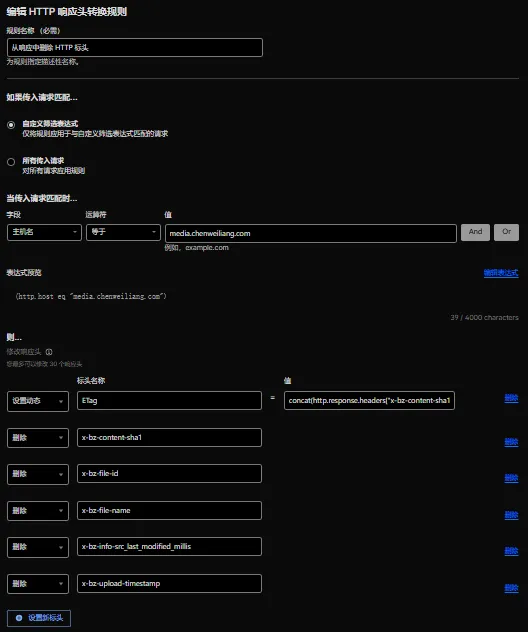
Configure the deletion of these headers:
x-bz-content-sha1
x-bz-file-id
x-bz-file-name
x-bz-info-src_last_modified_millis
x-bz-upload-timestamp
I don't think I've seen x-bz-info-src_last_modified_millis listed yet, but it's mentioned in the official tutorial, so I've added it too. Anyway, it won't hurt.
Then there is another rule that is also very important.
Optimize caching efficiency. On Cloudflare, you can set a response header rule to concatenate the ETag value with the response headers returned by Backblaze.
concat(http.response.headers[x-bz-content-sha1][0], http.response.headers[x-bz-info-src_last_modified_millis][0], http.response.headers[x-bz-file-id][0])
After setting this up, go back and check the image response headers. All the ones starting with "x-bz" are gone, and you'll see an ETag value.
Neat.
Configure caching rules
Add a page rule on Cloudflare, enter the domain name you resolved plus /* in the URL, select "Cache All" for the cache level, and set the edge cache TTL to one month.
We also need to configure Backblaze. In the bucket settings, add a line to the bucket information:
{"cache-control":"max-age=720000"}You can adjust this time as needed; the unit is seconds. 720000 seconds is approximately 8 days, which should be sufficient.
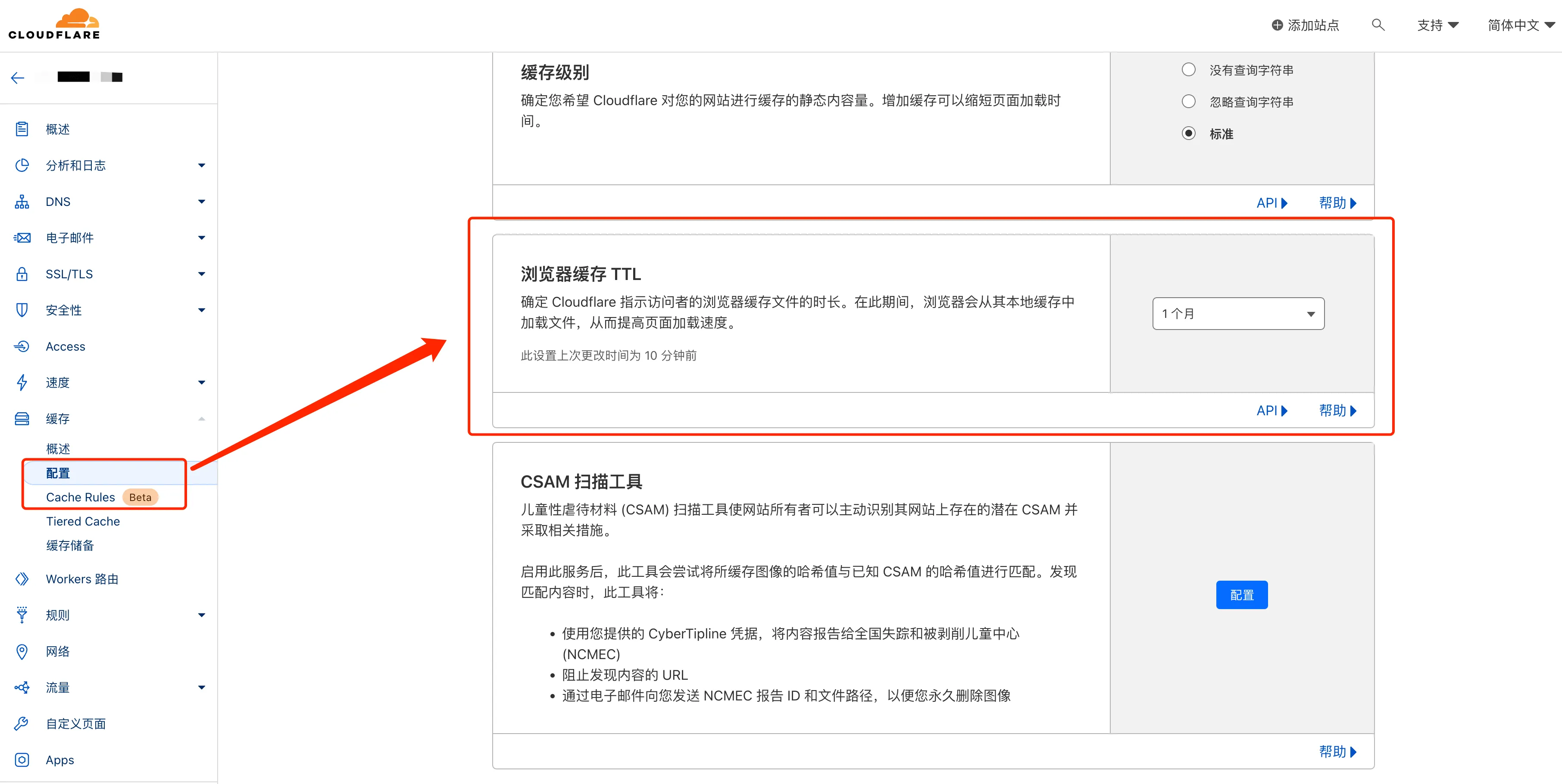
Now when you access your image again, you will see the following in the response header:
cache-control: max-age=720000
cf-cache-status: HIT
Did you see the HIT? That means the cache is working.
You don't need to pull resources from Backblaze every time; the CDN feeds them directly to you, which is fast and saves you Backblaze's free quota.
Speaking of which, while Backblaze offers a daily free allowance, it's honestly not a lot. 10GB of storage and 1GB of download traffic per day is more than enough if you're just uploading blog images, but if you're uploading videos or large files, it's recommended to make good use of Cloudflare's caching and avoid running a direct connection to the origin server.
In conjunction with the PicGo client
The choice of client-side visualization tool is up to you; there are other options like ipic. This section mainly focuses on PicGo.
Just search for PicGo on GitHub, find the releases page, and download the corresponding version.
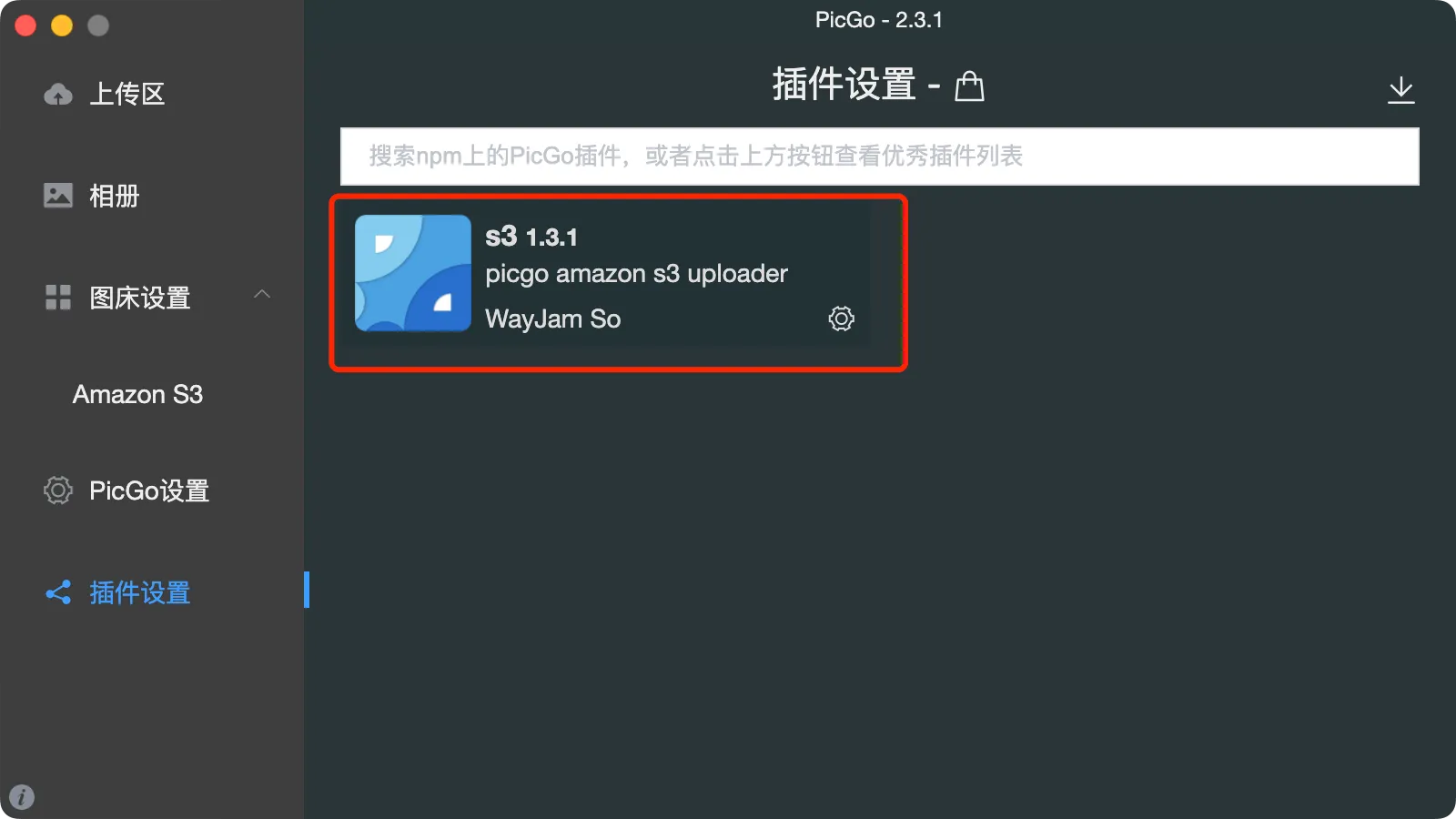
After installation, you need to install an S3 plugin because Backblaze B2 is compatible with the S3 API.
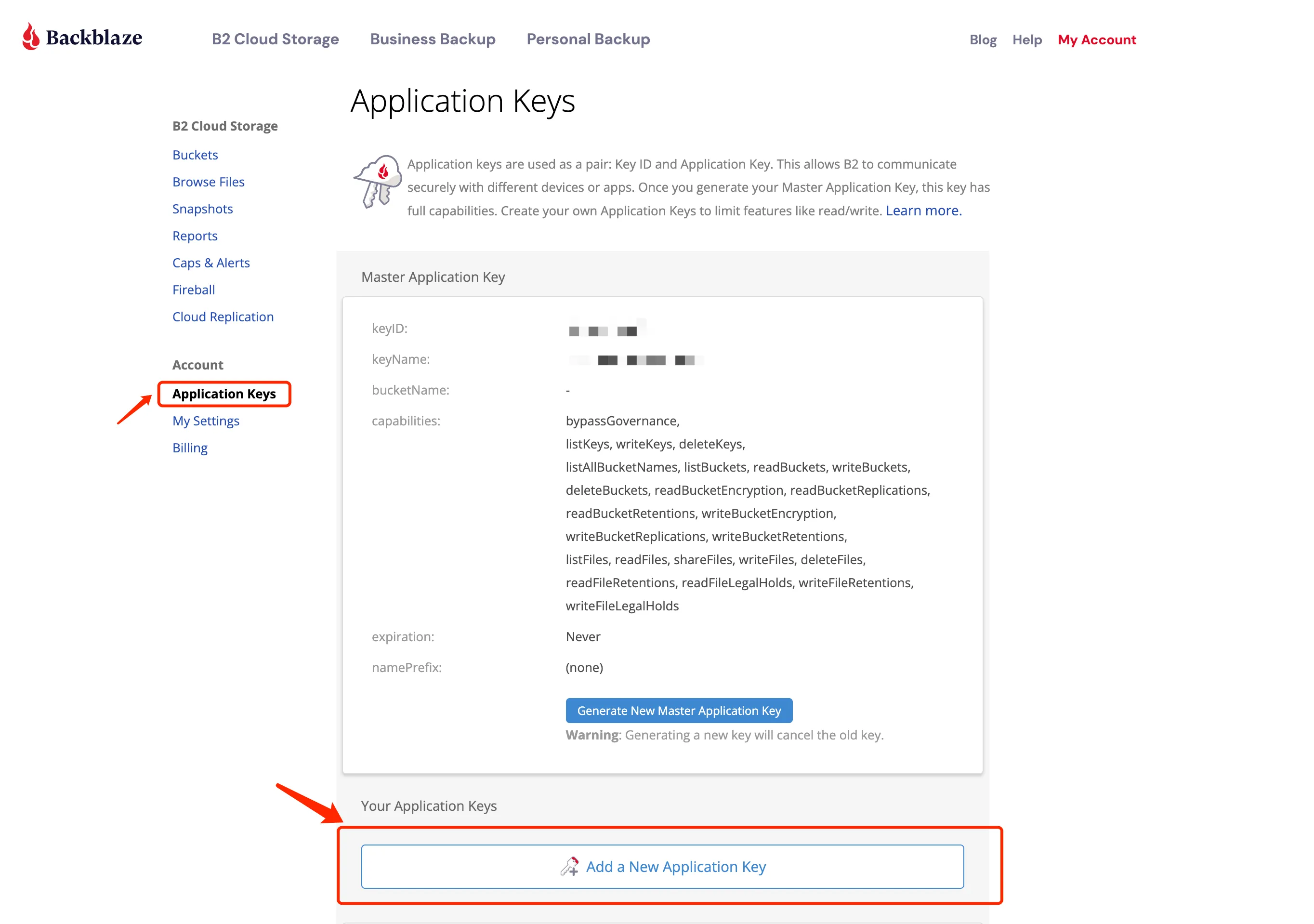
Then go to Backblaze and create an Application Key. On the App Keys page, click Add Application Key and select read and write permissions.
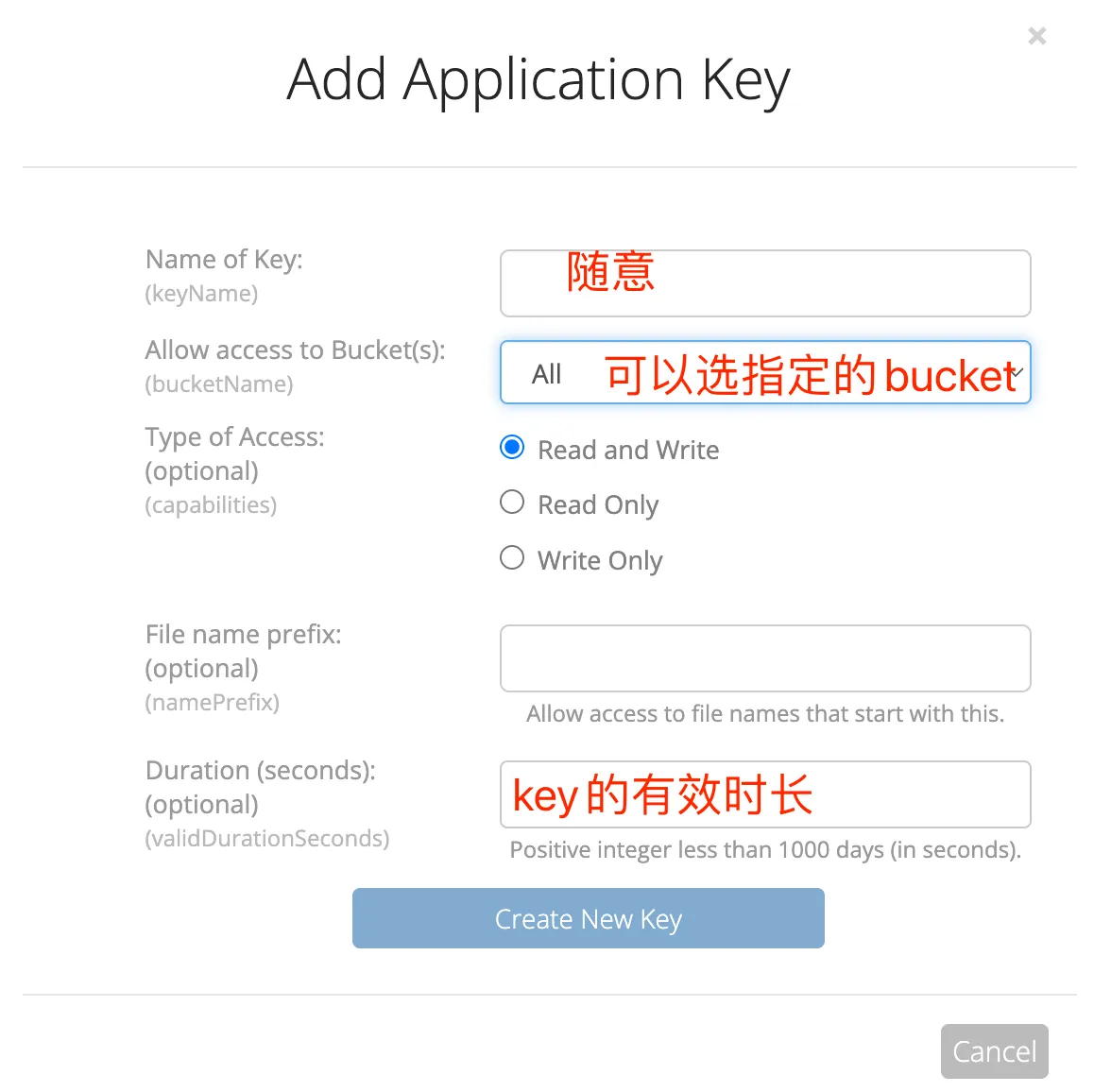
After obtaining the Key ID and Application Key, fill them in in the S3 plugin of PicGo.
There's a pitfall to watch out for here.
Many online tutorials use the format s3.us-west-xxx.backblazeb2.com for the endpoint, but if you're using a custom domain linked to Cloudflare like me, you need to enter your custom domain. Enter https://oss.xxx.com for the node field, and then enter the bucket name you just created for the bucket.
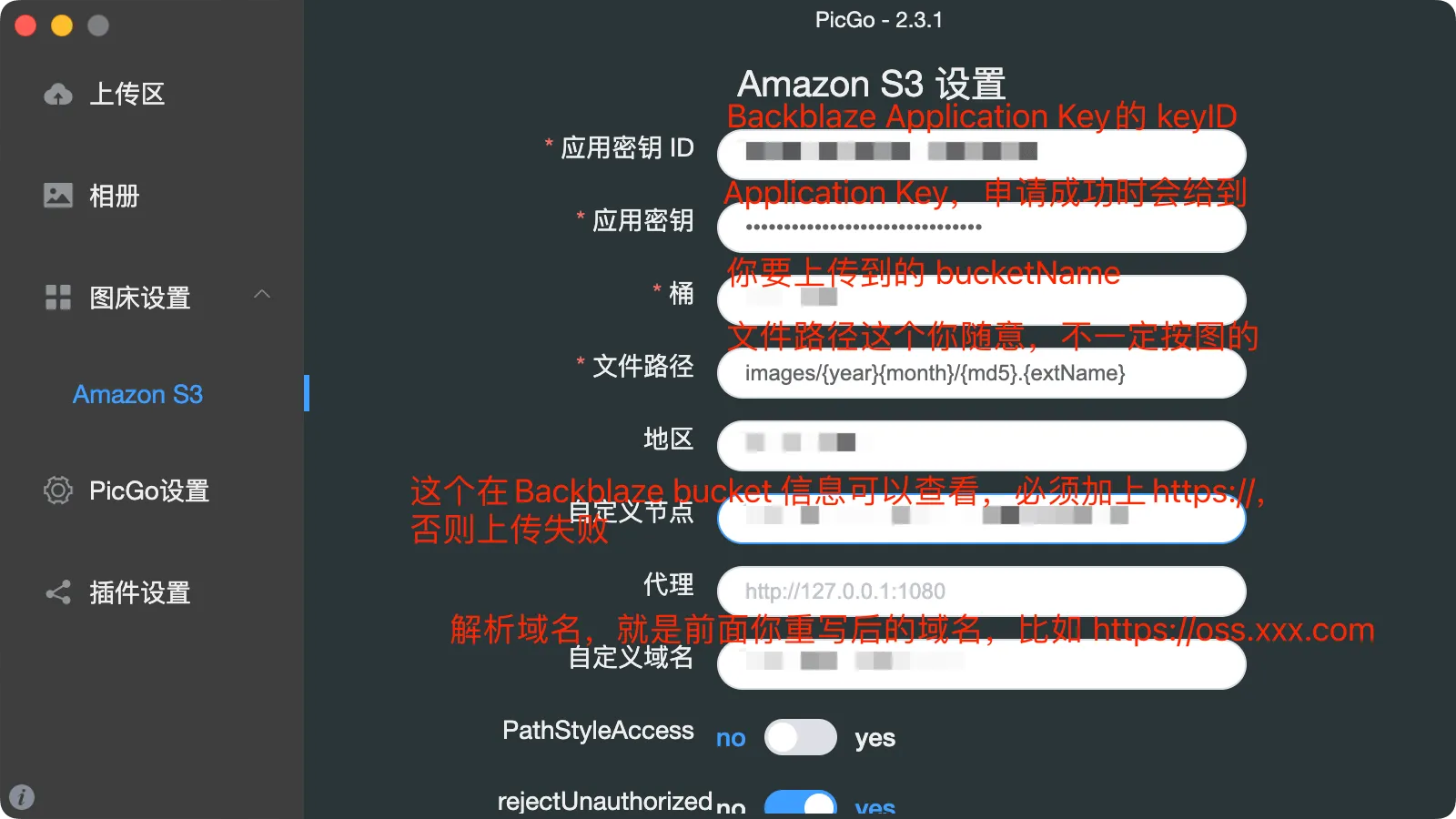
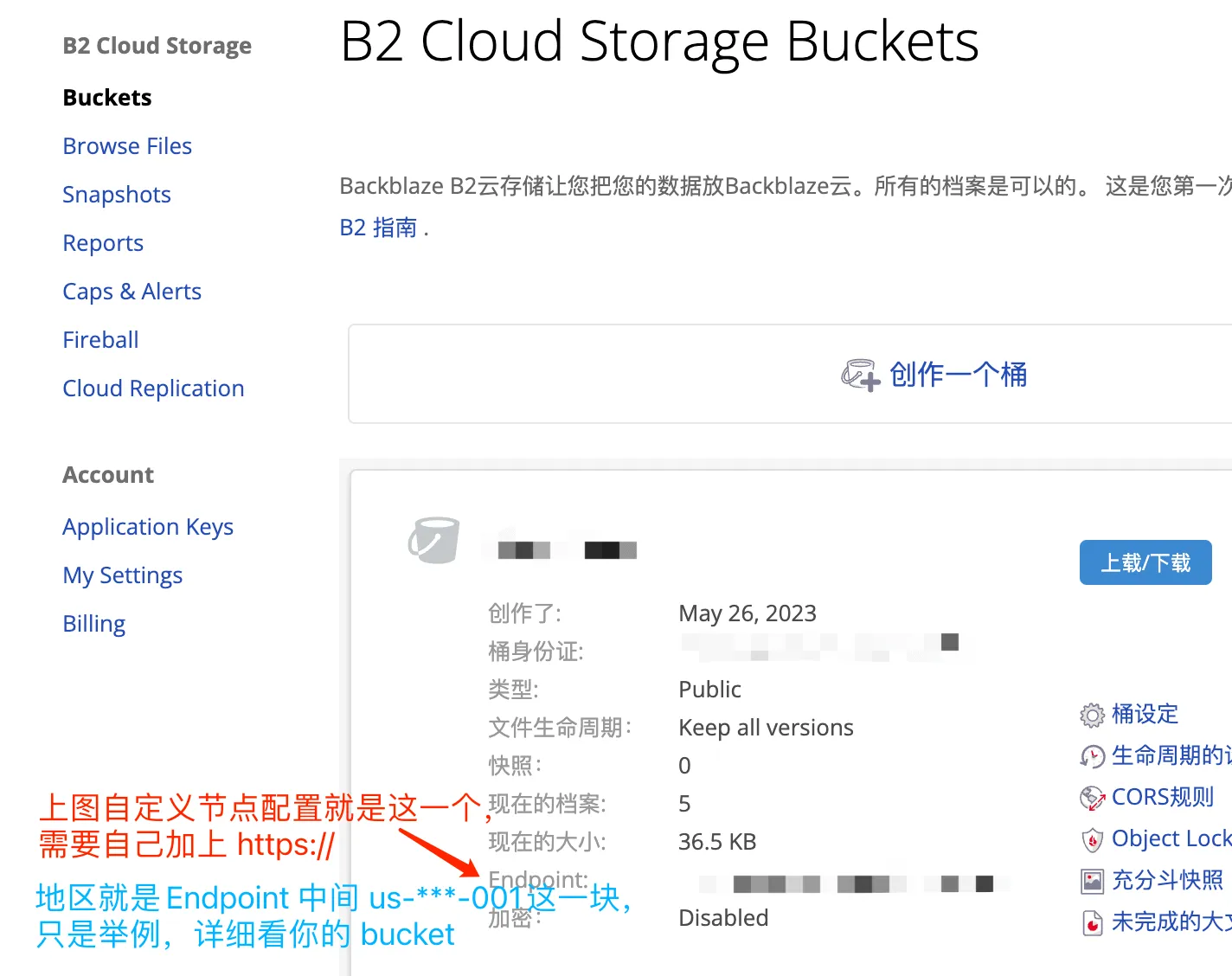
Save the file after you've finished matching it, and then upload a test image.
If it can be uploaded and accessed via a custom domain, then that's good.
View usage
If you want to check your Backblaze B2 usage, you can see it on the My Account page in the Backblaze backend. The daily storage, downloads, and B2 request counts are all clearly listed, making it easy for you to monitor whether you have exceeded the limit.
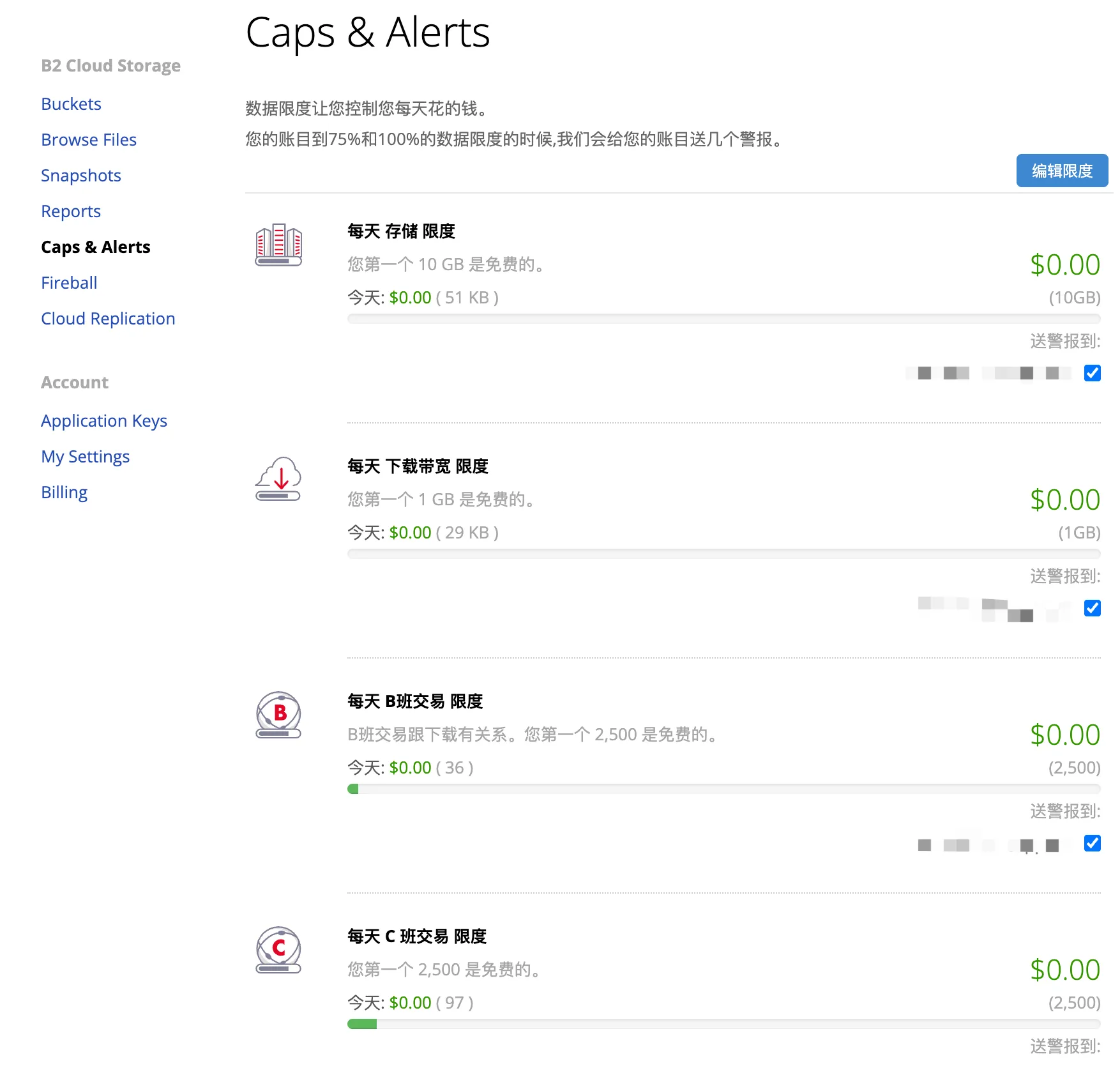
Actually, setting up this whole system wasn't particularly difficult, but it wasn't easy either; we did encounter a few pitfalls. The most annoying part was the details; missing even one would result in inaccessibility, slow loading, or information exposure.
My biggest takeaway after setting this up is that this solution is perfect for personal website owners or small blogs. It's low-cost, fast, and once configured, you basically don't need to do anything about it—a one-time solution for life.
Moreover, by wrapping Backblaze with Cloudflare, visitors see your custom domain, the response headers are clean, and there's CDN acceleration, making the experience just as good as those paid image hosting services.
Honestly, in this era where everything is charged based on usage, finding a nearly free plan like this is pretty great.
Finally, I'd like to say that if you're also struggling with image hosting, I hope this article and the next one can save you an afternoon of trial and error.
👉 Want to stop slowing down your website with images? Easily achieve external image storage and acceleration with Backblaze B2 cloud storage + WordPress Media Cloud plugin ! A complete tutorial guides you through the configuration step by step, ensuring security and efficiency, suitable for all WordPress users.
Since you've read this far, if you found it helpful, please like and share it. If you want to receive updates first, you can also follow me! ⭐
Thank you for reading my article. See you next time.
Hopefully, the article "Binding a Custom Cloudflare Domain to Backblaze B2 (Achieving 100% Free Traffic)" shared on Chen Weiliang's blog ( https://www.chenweiliang.com/ ) will be helpful to you.
Feel free to share this article's link: https://www.chenweiliang.com/cwl-34303.html