
Article directory
How to use ADB directly on an Android phone? No Windows PC required! This tutorial details the ADB operation process on your mobile device, teaching you how to quickly install APKs, push files, uninstall applications, and even wirelessly debug and view system logs. Learn now and master the ultimate Android debugging method!
The story goes like this: One day, while fighting for Wi-Fi at a coffee shop, I was figuring out how to debug my Android device without a computer when I suddenly remembered a friend's recommendation for the "Android ADB" app. With a tap of my finger, I opened it directly on my phone, instantly entering the command-line interface, and my phone transformed into a "mini computer."

Actually, I started researching the issue of Android phones being unable to install older versions of apps, or apps being incompatible with your phone, several months ago.
This thing feels like a key that unlocked the door to ADB, a feature previously only available on a computer. So I decided to write this amazing experience into a tutorial and also compile a list of some commonly used commands to offer a little bonus to anyone who wants to master ADB on the go.
Why choose mobile ADB?
Traditionally, debugging Android requires plugging the phone into a Windows computer; the ADB interface only lights up when the USB cable is plugged in. However, in reality, people don't want to bring their computers out when traveling, on business trips, or even in their living room.
This is where mobile ADB comes in: simply install the "Android ADB" app on your phone, and you can run ADB commands directly on your phone, eliminating the need for a computer and cables.
For developers, logging, installing, uninstalling, and checking processes anytime, anywhere becomes effortless; for advanced users, batch management of applications, clearing caches, and even disabling system components no longer require carrying a laptop.
Android phone ADB usage process
1️⃣ Install the app
I downloaded "Android ADB".
This Android ADB mobile application is included in the [Toolkit]. Simply join the Telegram channel and check the pinned [Toolkit] to get it ▼
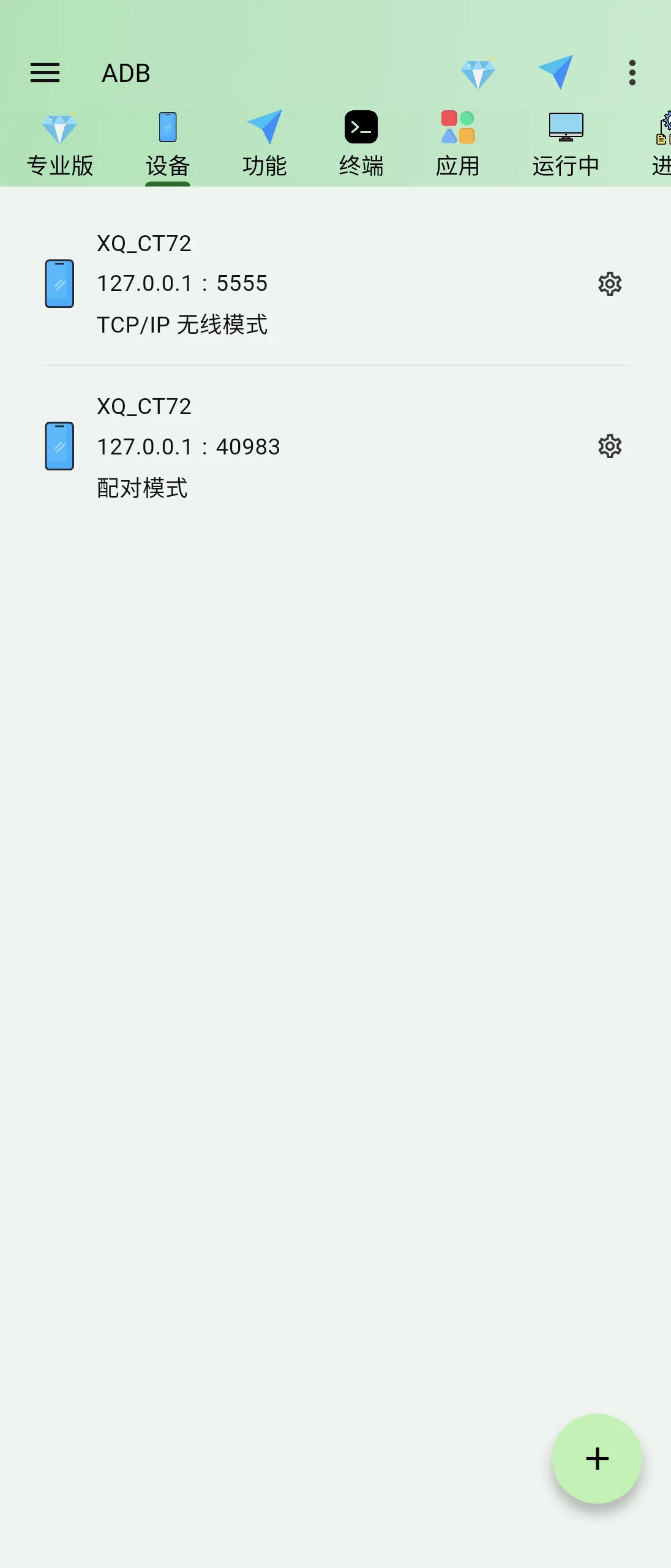
After opening, you will be taken directly to the command line page. The interface is simple but full of functions. Don't rush to run the code. Let's warm up your fingers first.
2️⃣ Push files to your phone
I have an example.apk file, so I typed it in the command line. adb push example.apk /sdcard/A few seconds later, the file had obediently been placed in the phone's storage directory. Actually, this step is no different from doing it on a computer; it's just that the "adb" command has been moved to the phone.
3️⃣ Install APK
Next, just type it on your phone. adb shell pm install --bypass-low-target-sdk-block /sdcard/example.apkThe system installs the app without hesitation. The entire process doesn't require disconnecting the cable, as long as the phone maintains a stable network connection.
4️⃣ Quick Reference for Commonly Used Commands
- View device information:
adb shell getpropYou can see system properties and hardware information, like opening a hidden system manual. - Uninstall the application:
adb shell pm uninstall 包名It was completely deleted. - Clear data:
adb shell pm clear 包名It's as clean as if it had been restored to factory settings. - View running processes:
adb shell psYou can see at a glance what's going on in the background.
Contextualized applications
Developer
When I'm attending a meeting and only have my phone with me, I simply open ADB Shell, push the latest APK version, and it installs and runs immediately, saving me the time of going back to my dorm to bring my computer. Debug logs are also usable. adb logcat Capture data in real time and promptly report any issues to backend colleagues.
Advanced Users
I like to use my phone as a "mini-server" to manage multiple apps in batches. First, I list all the installed package names, then... adb shell pm list packages Make a list, and then coordinate adb shell pm uninstall Batch uninstallation is useless.softwareThe phone instantly freed up a lot of storage space. It also has a wireless debugging function; when on the same local network as a computer, as long as... adb tcpip 5555After that, you can connect directly using the IP address; it only takes a few taps to set it up.
Testers
With the log function, I can open it at any time. adb logcatIt captures system logs and, in conjunction with commands simulating battery status, quickly verifies performance under low battery conditions. With just one mobile phone, the testing environment can be moved anytime, anywhere.
Final summary
- No computer requiredYou can complete all operations such as debugging, installation, and uninstallation using only your mobile phone.
- Wireless debuggingSupports Wi-Fi ADB, eliminating the need for data cables.
- Flexible and efficientQuick testing anytime, anywhere, especially suitable for outings or temporary needs.
If you're still stuck because you "don't have a computer," why not try this "Android Phone ADB" tool? It turns your phone into a "portable debugging tool," a real efficiency booster. Remember to enable Wi-Fi debugging mode and ensure your phone and PC are on the same network; this way, you can freely use ADB.
Now that you've read this far, if you found this tutorial helpful, please give it a like and share it with friends who might need it. Next time, I'll continue exploring mobile "hidden gems," so stay tuned.
Hopefully, the article "No Computer Required! The Ultimate Method for Installing APK Applications on Android Phones Using ADB," shared on Chen Weiliang's blog ( https://www.chenweiliang.com/ ), will be helpful to you.
Feel free to share this article's link: https://www.chenweiliang.com/cwl-34051.html