
Article directory
Notepad++ is an excellent SEO editing tool for writing online marketing copy .
Notepad++ is an enhancement to the Notepad software , adding many features.
- Includes the column block editing mode that programmers prefer.
- and supports many plugins, such as json formatting, supportmarkdowngrammar.
There are also cases such as:
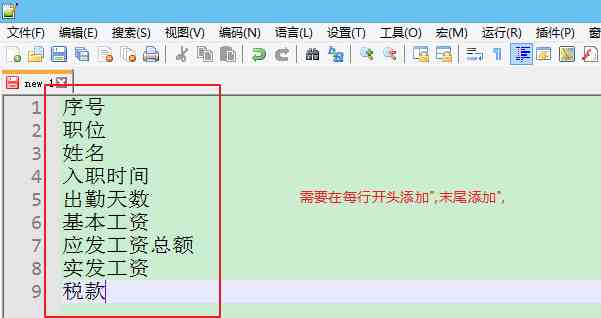
- The title bar of the uploaded payroll is what it says above.
- So when entering the database, we need to convert all of this to strings.
- Need to be added on each line
"add end of line",But it's cumbersome to do it one by one...
So, how can I use Notepad++ to quickly batch add the desired text character content at the beginning and end of a line?
Further Reading: How to add blank lines in Notepad++? Quickly add blank lines in batches at the end of each line.
Steps for adding content in batches at the beginning and end of a line in Notepad++
Step 1: Extract the content of the payroll header row in Excel ▼
- Put the contents of the salary row header row into a column.
Step 2: Use column block editing mode to add rows in batches
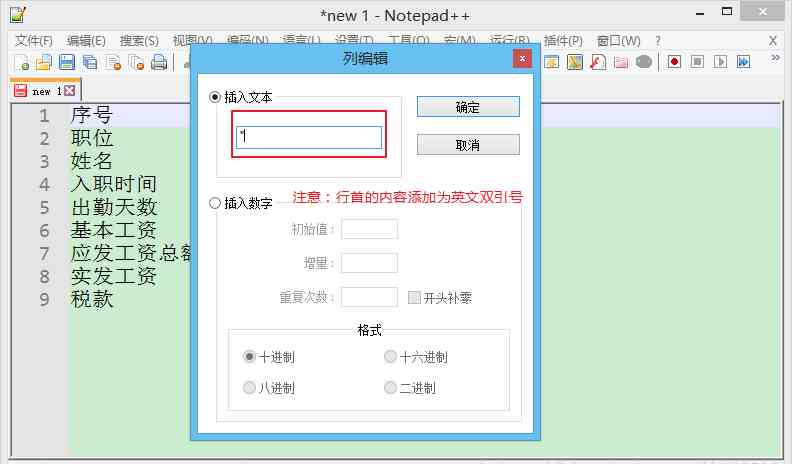
First place the cursor in front of the serial number, then click "Edit", select "Column Block Edit";
Or Notepad++ use the shortcut, place the cursor before the serial number and press Alt + C to quickly open the column block editing dialog ▼
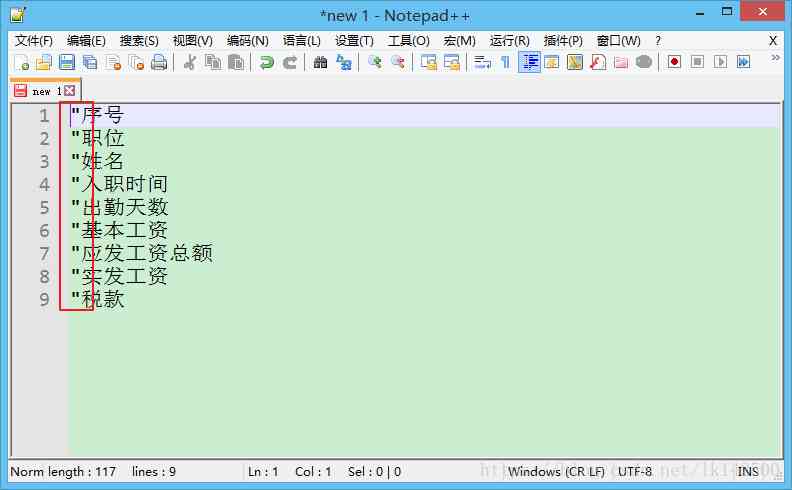
Notepad++ uses the column block editing mode to add the results at the beginning of the line in batches, as follows▼
Step 3: Add a comma at the end of the line.
Use Notepad++ replace function to add ” at the end of each line to form the desired text content ▼
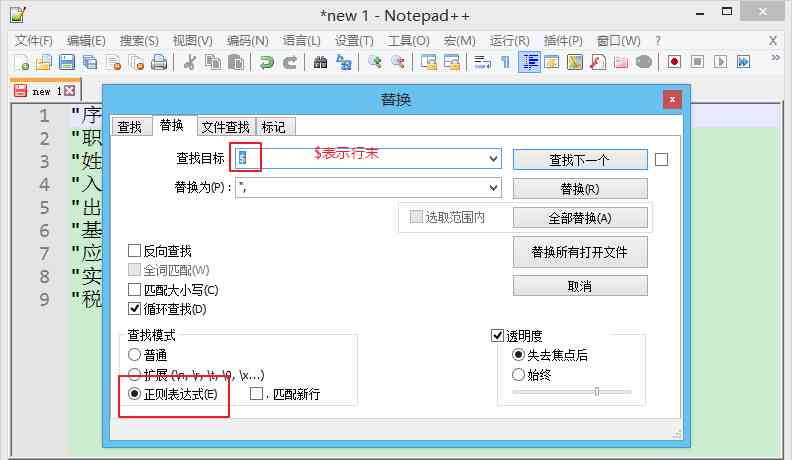
After clicking OK, perform all replacements, the effect is as follows ▼
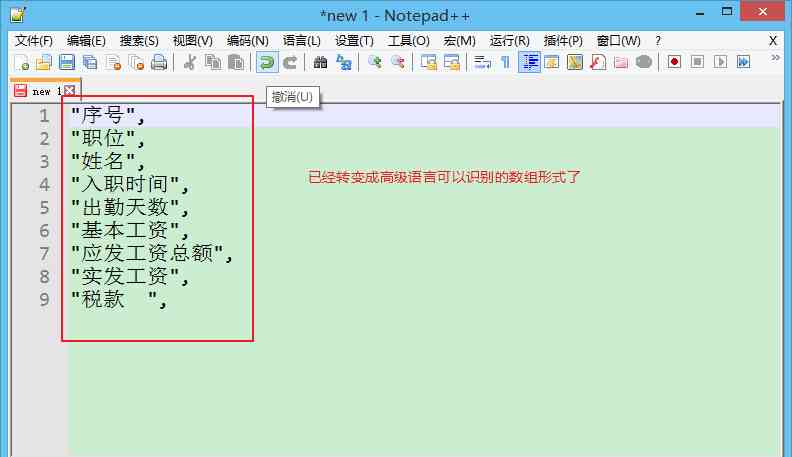
How does Notepad++ remove newlines on each line?
Step 4 : Delete newline characters in each line using Notepad++.
There may be many lines. When Notepad++ adds text suffix content at the end of the line in batches, it may cause too many lines of code...
Therefore, you can use the Notepad++ wildcard matching method to delete the newline at the end of each line▼
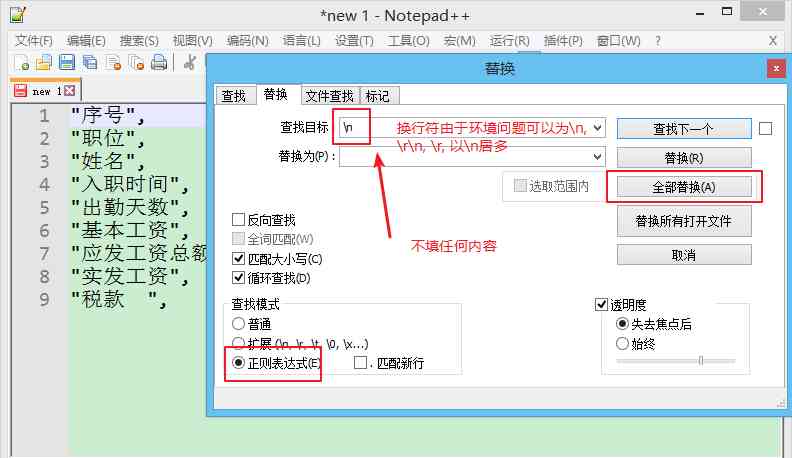
note:newlines due to environmental issues,A newline can be "\n" (mostly this) or "\r" or "\r\n"
Notepad++ deletes the effect of the newline at the end of each line, as follows▼
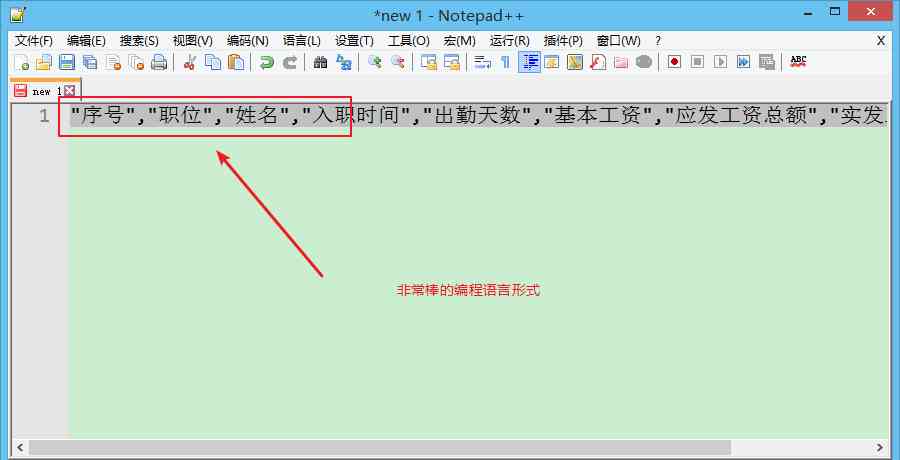
Download and installNotepad++ software
If you have not installed NotePad++ software on your Windows computer, download and install NotePad++ now ▼
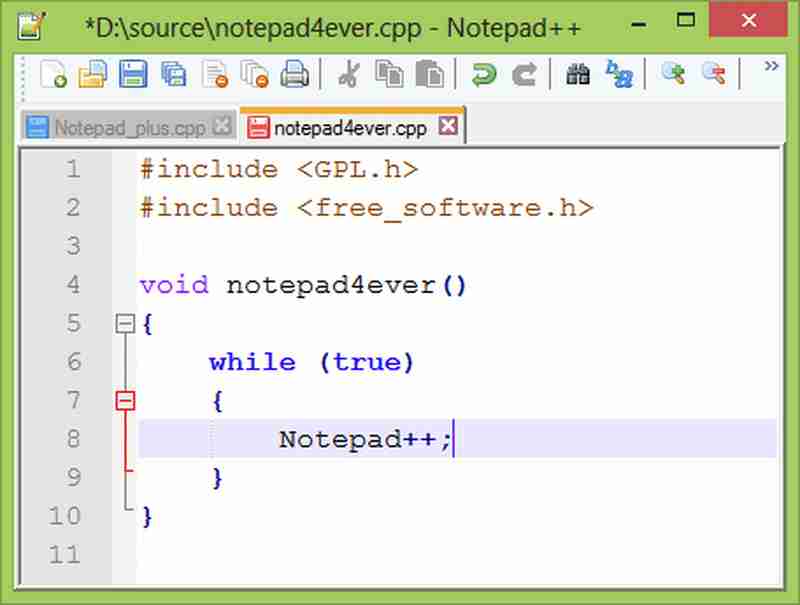
Use NotePad++ batch operations to improve the efficiency of copy editors and reduce tedious repetitive actions▼
- NotePad++ adds text content in batches at the beginning and end of lines, and NotePad++ column block editing handles very well.
Hopefully, the article "How to Batch Add, Delete, and Modify Text Suffixes at the Beginning and End of Lines in Notepad++?" shared on Chen Weiliang's blog ( https://www.chenweiliang.com/ ) will be helpful to you.
Feel free to share this article's link: https://www.chenweiliang.com/cwl-1846.html