
Article directory
How does the begin topic resolve {{unknown}} oembed_cache?
A new media professional who has just learned how to build a WordPress website is using the Robin Begin theme.
Found {{unknown}}, oembed_cache errors
When checking the MySQL database using phpMyAdmin , numerous errors were found...
post_content field, lots of errors found:{{unknown}} ▼

post_type field, lots of errors found:oembed_cache ▼

How can I find the "oembed_cache, {{unknown}}" error in the phpMyAdmin database ?
In the MySQL database, search for "oembed_cache" ▼

- What to search for:oembed_cache
- Find:at least one word
- in the following list:select all
- Click "Execute"
Then, in the wp_posts data table, I searched for "oembed_cache" and found 691...
It can be seen that the robin's begin theme is a very bloated WordPress theme:
- There is a big gap in the WordPress article ID for every 1 article updated.
- For example: just updated an article, the article ID is 1.
- Then within half an hour, another article was updated, and the article ID was 1.
- The gap between 2 article IDs is 10.
Solution
Step 1: Switch to another WordPress theme (a theme not developed by Robin).
Step 2: Enter phpMyAdmin database management.
Step 3: Click on the website's MySQL database.
Step 4: Click on the wp_posts data table
Step 5: Click on the "Search" option
Step 6: Click "Find and Replace" ▼
- Find: oembed_cache
- Replace with: posts
- Field: post_type
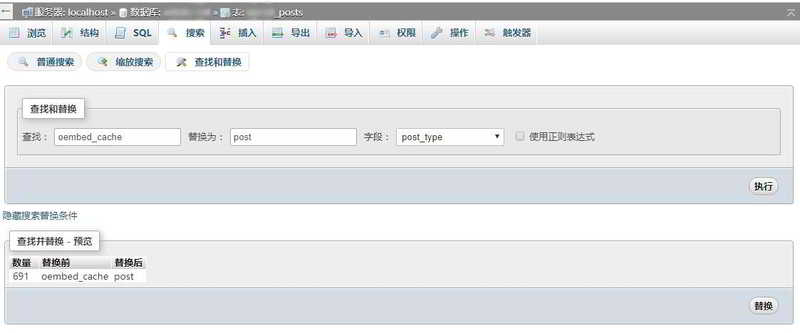
- After clicking "Execute", click "Replace".
Step 7: Background settings Items per page: 100
- enterWordPress backend, and in all articles, click Show Options in the upper right corner.
- Set pagination in the background, the number of items per page: 100 (or more)
- Click Apply.
Setting the number of items per page depends on the maximum loading time of your website PHP. For details, please refer to this article▼

Step 8: In all articles, search for "{{unknown}}"
Step 9: Bulk Edit Articles
After checking all the "(untitled)" articles, select the "Edit" application ▼
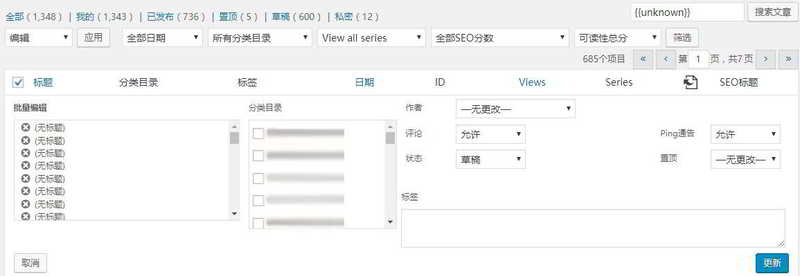
- Comments: Allowed
- Ping Announcement: Allowed
- Status: Draft
- Click "Update"
If there are still articles to be edited in bulk, click "Next" and continue to repeat the batch editing until it is complete.
Attention points
Before operating the phpMyAdmin database, be sure to make a backup of the MySQL database, otherwise you will be responsible for the consequences.
Hopefully, the article "How to solve the WordPress theme {{unknown}} oembed_cache problem?" shared on Chen Weiliang's blog ( https://www.chenweiliang.com/ ) will be helpful to you.
Feel free to share this article's link: https://www.chenweiliang.com/cwl-2110.html