
Article directory
The solution to the WordPress upgrade message "Another update is in progress" is to delete the core_updater.lock record in the database or use a plugin to clear the update lock.
The fastest way is to use phpMyAdmin or execute the delete statement in functions.php, and normal update functionality will be restored in a few minutes.
A couple of days ago, I was helping a friend check his WordPress website, and the backend kept showing "Another update is in progress".
I thought to myself, "Shouldn't this just take ten minutes or so?" But half an hour passed, and when I refreshed the page, it was still there. I was stunned.
You're not a programmer, so you don't need to write code. You're not a content creator, so you don't need to write articles every day. You're just an ordinary website owner who wants to update the site peacefully, but you're stuck with this stupid problem. I totally understand how you feel.
To be honest, I'm not sure if this tutorial I wrote will be helpful to you, but I've shared it without reservation. This WordPress "Another update is in progress" error is a pitfall I've encountered myself, and also a problem I've helped friends with.
Now I'll explain the methods I've figured out all at once.
How did the error "Another WordPress update is in progress" occur?
When WordPress performs a core update, it writes a value called core_updater.lock to the wp_options table in the database. You can think of it as a lock that tells the system, "I'm updating, don't do anything yet."
Normally, this lock will automatically disappear after the update is complete. However, if something unexpected happens during the update process, such as server timeout, insufficient memory, network interruption, or plugin conflict, the lock will not unlock automatically.
The next time you want to update, the system will see that the lock is still there and will tell you "Another update is in progress". It's that simple.
Method 1: Wait for WordPress to automatically unlock the update.
WordPress usually clears this lock automatically after about 15 minutes. If you've just encountered this problem, you can make yourself a cup of coffee and try again later.
But if you wait half an hour or even longer and it still doesn't recover, then stop waiting and deal with it manually. My friend waited for almost an hour that time, and it was still the same.
Method 2: Use a plugin to fix another ongoing update.
This method is the simplest and is suitable for those who don't want to mess around with databases.
Go to the plugin marketplace and search for "Fix Another Update In Progress," then install and activate it. Next, find the plugin in your settings, click the "Repair" button, and lock it to remove the plugin.
I haven't used this plugin myself, but it sounds quite convenient. It's not that I don't want to use it, but I prefer to work with databases directly; it feels more reassuring. However, if you're not very familiar with databases, this plugin is definitely a hassle-free option.
Method 3: Delete the core_updater.lock record in phpMyAdmin
This is my most frequently used method. Although it sounds a bit technical, it is actually very simple to operate.
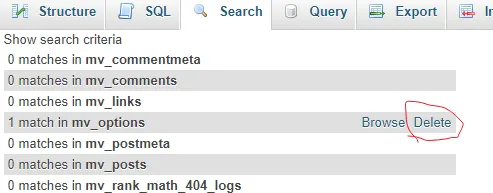
Log in to your web hosting control panel and find phpMyAdmin. Open the database corresponding to WordPress and locate the `wp_options` table. Search for the option name `core_updater.lock` in the table, and delete that record once found.
And that was it, that was it.
Refresh your WordPress update page and the error will disappear. When I first used this method, I also found it quite amazing; such a simple line of code had kept me stuck for so long.
Method 4: Delete, update, and lock the code in functions.php
If you find it inconvenient to use phpMyAdmin, or if you want to do it directly in the WordPress backend , you can try this method.
Go to the backend, then Appearance, then Theme Editor, and locate the functions.php file. Add the following code to the end of the file, save it, and then refresh the page to update.
The code is roughly like this: global $wpdb, then execute a delete statement to delete core_updater.lock from the wp_options table.
After saving, remember to delete this code; don't leave it in functions.php. I forgot to delete it at the time and only remembered later. Although it didn't cause any problems, it's still good to develop a good habit.
Method 5: Repair update issues using WP-CLI command line
If you have SSH privileges, this method is the fastest.
Type the following command in the terminal:
wp option delete core_updater.lock
Press Enter, and you're done.
To be honest, we're still far from that level. Many people probably don't even know what SSH is, let alone how to use the command line. But if you're a developer, or your hosting provider has given you SSH access, this method is indeed the most efficient.
Preventive measures for WordPress update failures
Regardless of the method you use, I recommend backing up your data before updating. When it comes to databases, if you delete the wrong thing, there's nowhere to turn for help.
Also, avoid manually updating during automatic updates, as it can easily cause conflicts. My friend got stuck because of this.
Also, make sure your hosting provider has sufficient PHP memory limits, at least 256MB. Insufficient memory is a common cause of update failures.
Regularly maintain your website, remove unnecessary plugins, update necessary features, and avoid accumulating too many version differences, which will reduce the risk during updates.
To be honest, I'm not sure if this tutorial will be helpful to you, but I've shared everything without reservation. That's just how WordPress is—it's full of small problems, but every problem has a solution. The key is to stay calm and take it one step at a time.
If you're interested in WordPress website building , you might encounter similar problems. Feel free to share how you solved them in the comments section.
Since you've read this far, if you found it helpful, please like and share it. If you want to receive updates first, you can also follow me!
Thank you for reading my article. See you next time.
Hopefully, the article "WordPress prompts 'Another update is in progress? 4 quick fixes in 1 minute'" shared on Chen Weiliang's blog ( https://www.chenweiliang.com/ ) will be helpful to you.
Feel free to share this article's link: https://www.chenweiliang.com/cwl-34373.html