
Article directory
Many video creators have had this experience: just as they get used to a stable version of CapCut, the background secretly downloads an update package, forcing an upgrade upon restart. The result is a drastically different interface, frequent lag, and even previously free features becoming VIP paid features.

What's most frustrating is that there's no "turn off automatic updates" switch in the CapCut settings.
So the question is, how do we completely lock down the CapCut version and prevent it from secretly upgrading again? The answer is: block the update channel directly through the operating system's underlying permission management!
YouTube video timestamp:
- 00:00 Disable automatic updates for CapCut | Resolve CapCut upgrade issuesAISubtitle Paid Tutorial
- 00:08 Windows system completely locks the CapCut version | Right-click to deny write permissions to prevent automatic upgrades
- 00:27 Mac CapCut automatic updates disabled | Download CapCut 5.9 Professional Win/Mac installer
- 00:42 Locking in a stable version of CapCut | Guide to avoiding update lag and editing pitfalls
I. Windows PC: Right-click properties and deny permissions method
The most crucial point: to completely prevent CapCut from forcibly updating, the core is to delete the new version update folder and lock permissions in the old version (such as 5.9) directory through "Properties → Security → Deny Write".
This way, even if the background tries to download an update, it will fail because the permission is denied.
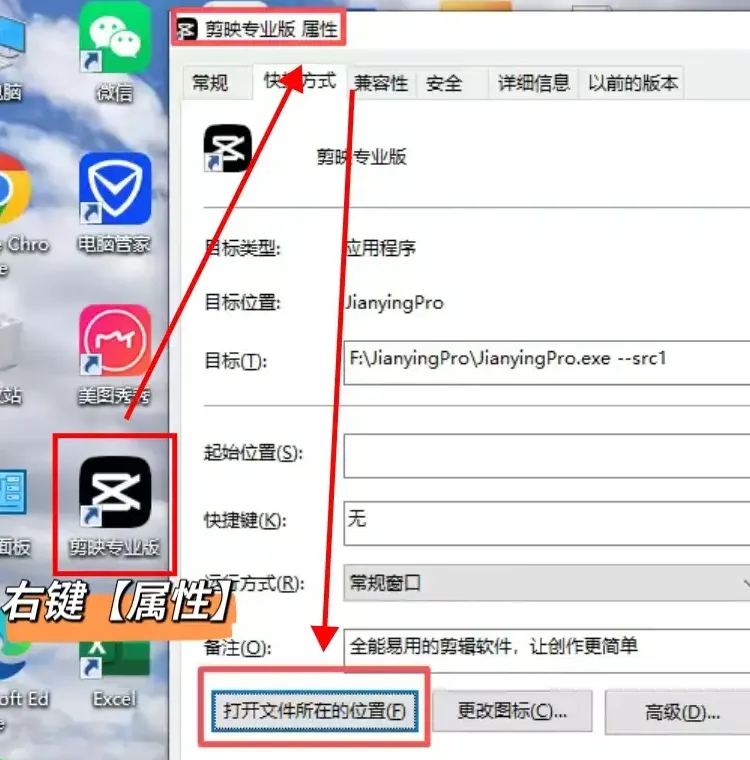
Find the installation location of CapCut
- Locate the CapCut shortcut on your desktop, right-click and select Properties.
- On the "Shortcut" tab, click "Open file location".
Delete the new version update folder
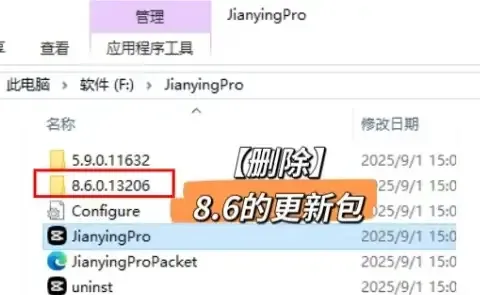
- Find something similar in the directory
8.6.0This is the new update package in the folder. - Delete the entire folder to avoid triggering automatic upgrades.
- Find something similar in the directory
Lock directory permissions for older versions (e.g., 5.9)
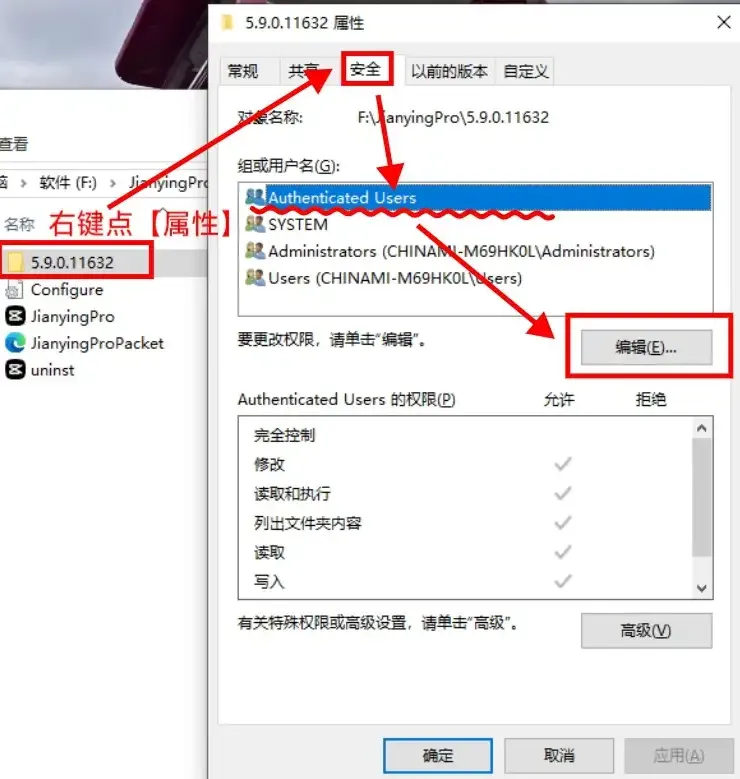
- Right-click
5.9Folder → Properties → Security. - Select users one by one from the “Group or user name” list (SYSTEM, Administrators, current account).
- Click Edit, and check the box for "Write" permissions. Refuse.
- Confirm and save.
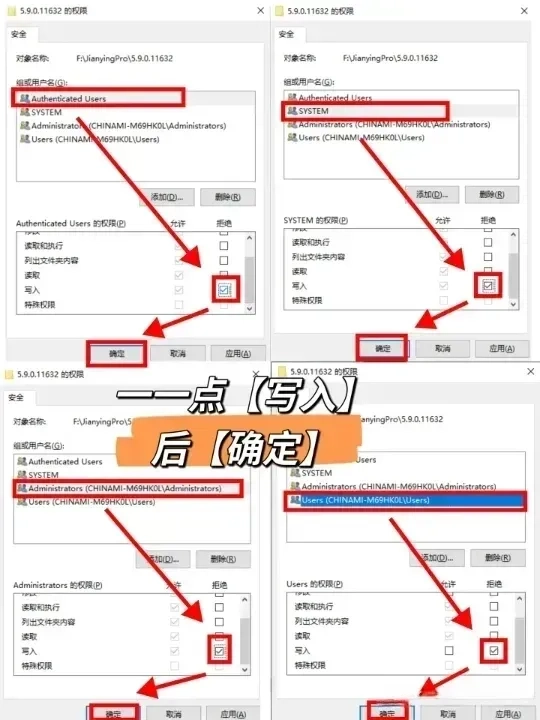
- Right-click
Verification successful
- Restart your computer and reopen CapCut.
- If the version remains at 5.9, the setup was successful.
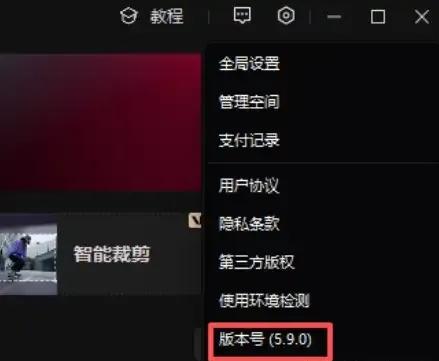
Advanced Techniques
If found in the installation directory JianYingProUpdater.exeSimilarly, right-click → Properties → Security → Edit → Deny All. Double protection!
II. Apple Mac computers: Folder locking and Terminal commands
On Apple's macOS, the logic is similar, also achieved by revoking write permissions for the update directory.
Method 1: Lock Finder Info
Open Finder, press
Command + Shift + G,enter:~/Library/Application Support/enter
JianYingProFolder, findinstaller.- Clear existing files.
- If it doesn't exist, create one.
Right-click → Show Info → Expand "Sharing & Permissions".
- will everyone, staff, current user Change the permissions to "No permission".
- Check the box in the "General" area. locking.
Method 2: One-click blocking via terminal command (Recommended)
If you are familiar with the terminal, simply run the following command:
rm -rf ~/Library/Application\ Support/JianYingPro/installer/*
chmod 000 ~/Library/Application\ Support/JianYingPro/installer
chflags uchg ~/Library/Application\ Support/JianYingPro/installer
This allows you to instantly clear, revoke permissions, and lock the update directory, completely blocking it.
⚠️Tip : If you downloaded CapCut from the Mac App Store , simply uncheck "Automatic Updates" in the App Store settings; no folder changes are required.
III. Frequently Asked Questions (FAQ)
Q1: What if I want to update it later?
- Windows: Cancel "Deny" permission.
- Mac: Unlock and restore read and write permissions, or run
chflags nouchgversuschmod 755.
Q2: Will a pop-up notification still appear after permissions are locked?
It will prompt you, but the update file cannot be downloaded. Clicking upgrade only results in "Download failed," and the version remains unchanged.
Final Thoughts
Whether it's Windows or Mac, the most effective strategy to prevent updates is to block the write channel for update packages.
By right-clicking and selecting "Properties - Security - Deny Permissions" or using terminal commands, you can permanently fix your favorite version of CapCut with just one setting.
In the world of creation, stability is productivity. Locking down versions is not only a matter of technical control, but also a way for creators to defend their freedom.
Remember this:Mastering the version means mastering the rhythm; refusing forced updates is protecting the dignity of creation.
How can I obtain the CapCut Pro 5.9 installation package for Windows/Mac computers?
Simply join the Telegram channel and check the pinned "Toolkit" to get it ▼
Hopefully, the article "How to Turn Off Automatic Updates in CapCut? A Tutorial on Completely Locking Versions in a Win/Mac Dual System (Right-Click Permission Deny Method)" shared on Chen Weiliang's blog ( https://www.chenweiliang.com/ ) will be helpful to you.
Feel free to share this article's link: https://www.chenweiliang.com/cwl-34493.html