
Article directory
How can I automatically forward Gmail emails to QQ Mail or other accounts?

You can choose to forward all new mail to another email address, or only forward certain types of mail.
What is the difference between automatic mail forwarding and collection?
- After automatic forwarding, the sender of the email will become the forwarding mailbox, and the recipient will not.
- There is no difference between the two if you only receive mail without replying to it.
- If you need to reply to the email, it is recommended to choose the collection plan.
Set up Gmail to automatically forward mail
You can automatically forward all mail to other addresses, or forward certain types of mail.
notice
- You can only set up Gmail forwarding on the desktop version.
- The Gmail mobile app does not support setting up forwarding.
Enable or disable automatic forwarding in Gmail
Note: Spam emails are not forwarded when the system forwards new emails.
Enable automatic forwarding
Step 1: Log in to the Gmail account you want to forward to.
On your computer, log in to the Gmail account that will forward the mail ▼
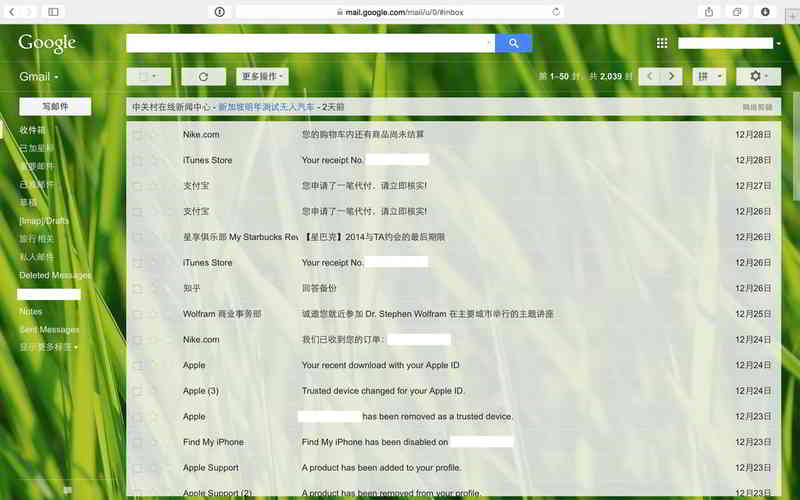
- You can only forward mail from a certain Gmail address, but not email groups or aliases.
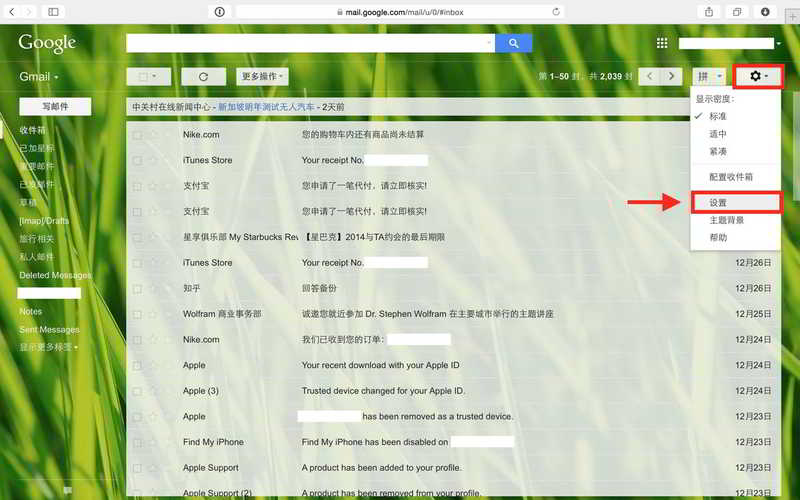
Step 2:Click the Settings icon in the upper right corner
Step 3: Click Settings ▼
Step 4: Click the "Forward" and "POP/IMAP" tabs ▼
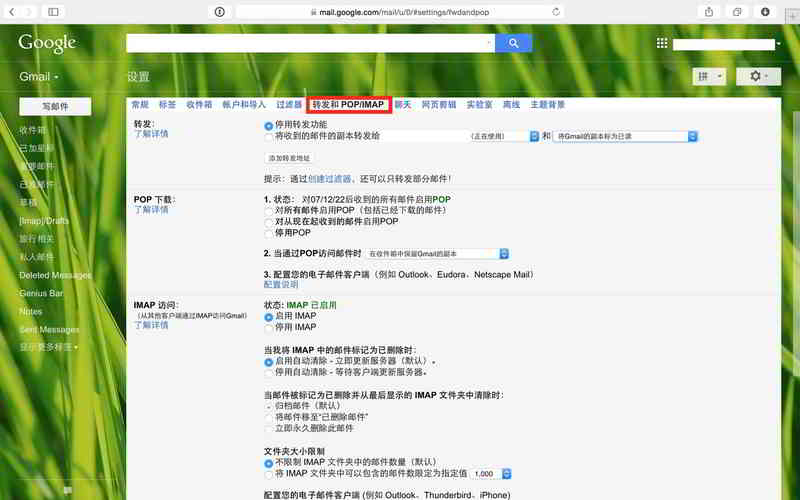
Step 5: In the "Forwarding" section, click "Add Forwarding Address" ▼
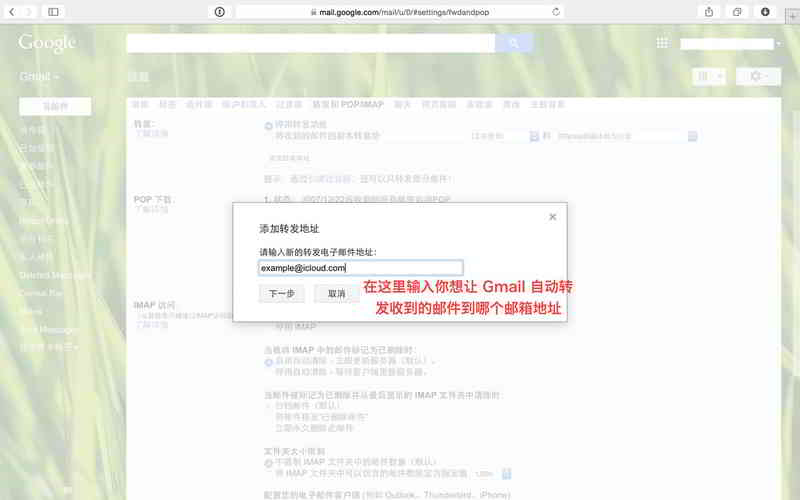
- Enter the email address to which you want to forward mail.
- Click Next, then Continue, then Confirm.
Step 6: A verification email will be sent to this address. Click the verification link in the email ▼
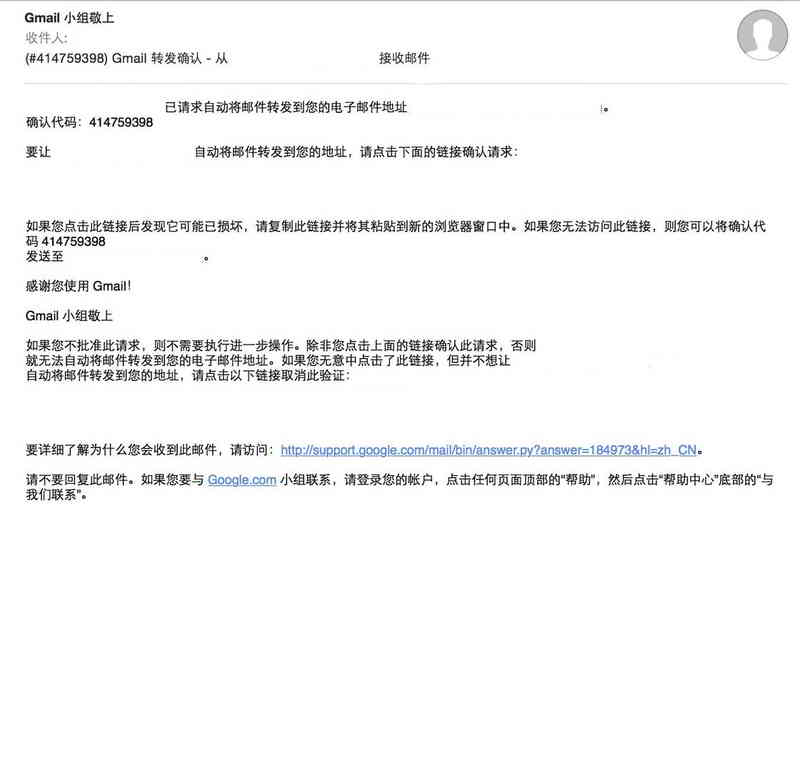
- Go back to the settings page of the Gmail account you want to forward mail to and refresh your browser.
Step 7: Click the "Forward" and "POP/IMAP" tabs.
In the "Forward" section, select to forward a copy of the received message to ▼
![In the "Forwarding" section of Gmail settings, select to forward copies of received emails to [the appropriate recipient].](https://img.chenweiliang.com/2018/12/gmail_auto_forwarding_007.jpg "In the \"Forwarding\" section of Gmail settings, select to forward copies of received emails to [the appropriate recipient].")
- Choose what you want to do with the Gmail copy of the email.
- We recommend that you keep a copy of Gmail in your inbox.
Step 8: Click "Save changes" at the bottom of the page.
Disable/disable automatic forwarding in Gmail
- On your computer, open Gmail with the account you want to stop forwarding.
- Click the Settings icon in the upper right corner.
- Click Settings.
- Click the "Forwarding" and "POP/IMAP" tabs.
- In the Forwarding section, click Disable Forwarding.
- Click "Save Changes" at the bottom.
Forward only certain types of mail
If you only want to forward certain types of mail to other accounts, create a filter for those emails▼
Since QQ Mail cannot receive emails from UptimeRobot website monitoring as usual , I can only use Gmail.
However, the inability to access Gmail mailboxes as usual in China is another problem...
Solution:
- Use your Gmail mailbox to receive UptimeRobot mail.
- Specially specify the UptimeRobot email address, which will be automatically forwarded to the QQ mailbox.
Here is an example of monitoring emails on the UptimeRobot website:
1) The sender enters "[email protected]"▼
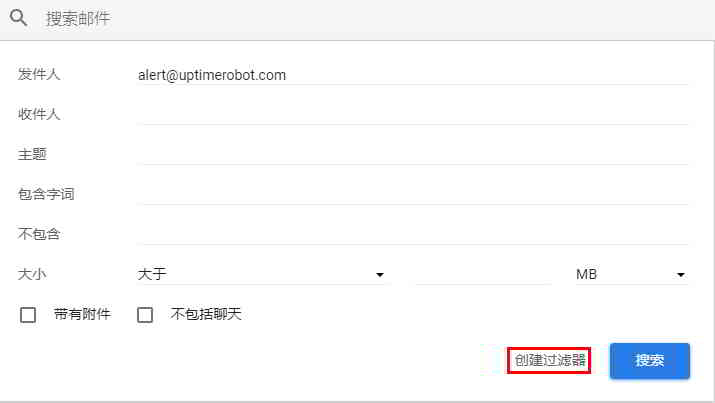
2) Check "Forward to:", "Do not send it to 'spam'"▼
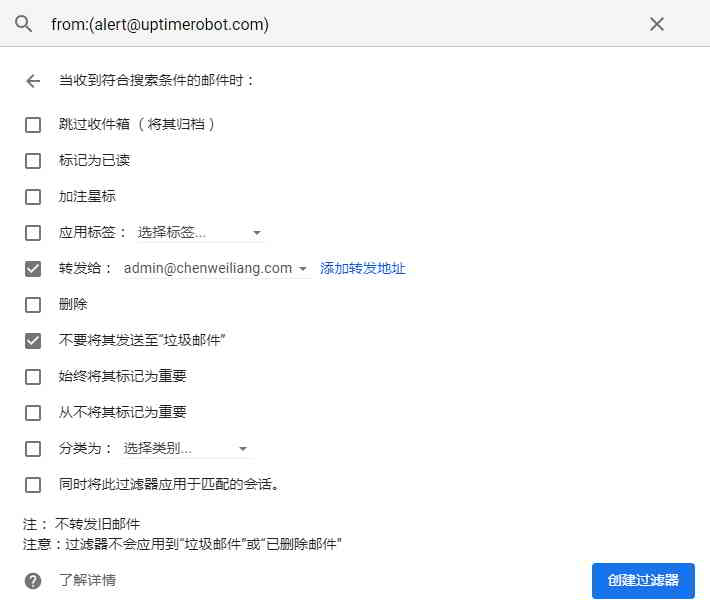
- After setting up the filter, you can choose to forward these messages to this email address.
3) If you only forward the specified email address, you must select "Disable forwarding function" to forward the specified email address ▼

- If you don't see a forwarding address for these emails, follow the steps above to enable forwarding.
Forward to multiple accounts
You can only automatically forward all mail to one account.
To forward email to multiple accounts, follow the steps in "Forward only certain types of mail" to create a filter to forward mail to another account.
QQ mailbox receives Gmail automatic forwarding mail
QQ mailbox has successfully received Gmail mailbox ▼
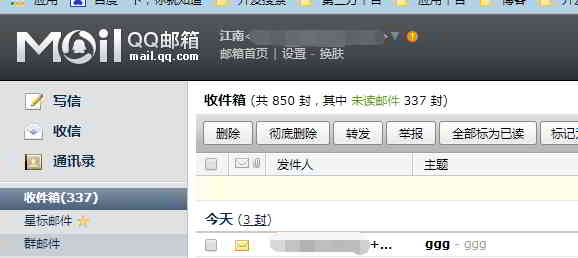
- After entering my QQ mailbox, I found that I received an email from my Gmail mailbox, and it's done!
After a few simple steps above, we succeeded!
Hopefully, the article "How to Automatically Forward Emails in Gmail? Forwarding Specific Emails to QQ Mail" shared on Chen Weiliang's blog ( https://www.chenweiliang.com/ ) will be helpful to you.
Feel free to share this article's link: https://www.chenweiliang.com/cwl-2012.html