
Article directory
Want to quickly improve your website's security? We'll teach you how to use a free WordPress plugin to batch replace all URLs in your WordPress database with HTTPS in minutes .
Whether you are a novice or an old hand, this easy-to-understand tutorial can help you complete the operation easily and ensure your website is upgraded safely in one step!
If you want to change your website domain name, or successfully purchase a satisfactory .com domain name, then you must modify all the old URLs in the database and update them to the new URLs.
Otherwise, many links and content (such as images) on your website may become invalid and not display properly.
Additionally, after adding an SSL certificate to your website, you will need to replace all URLs in your database with https.
Also, after you've resolved the WordPress website migration error: Too many redirects. Try deleting your cookies. ERR_TOO_MANY_REDIRECTS. After that, you need to replace the old server path with the new server path.
such as:
- Change the old server path:
/home/eloha/public_html/etufo.org - Replace with the new server path:
/home/eloha/web/etufo.org/public_html
How to switch all URLs in WordPress database to HTTPS in less than 1 minute?
You don't need to modify them one by one manually! Just download a free plugin "Search and Replace" and you can do all the operations easily.
This guide will show you how to use the Search & Replace plugin to replace all URLs or any text data in your WordPress database without having to go through tedious technical steps.
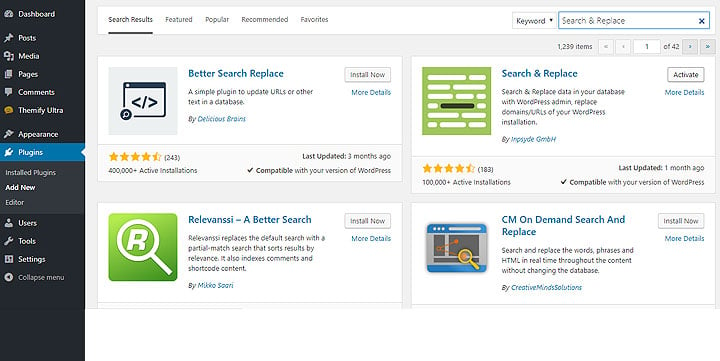
Step 1: InstallationSearch & Replace Plugin
- login your WordPress backend, then click "Plugins" in the sidebar
- Click on "Install New Plugin"
- search for"
Search & Replace"Plugins - Click "Install Now" and "Activate"
Step 2: Search and replace URLs in database with HTTPS
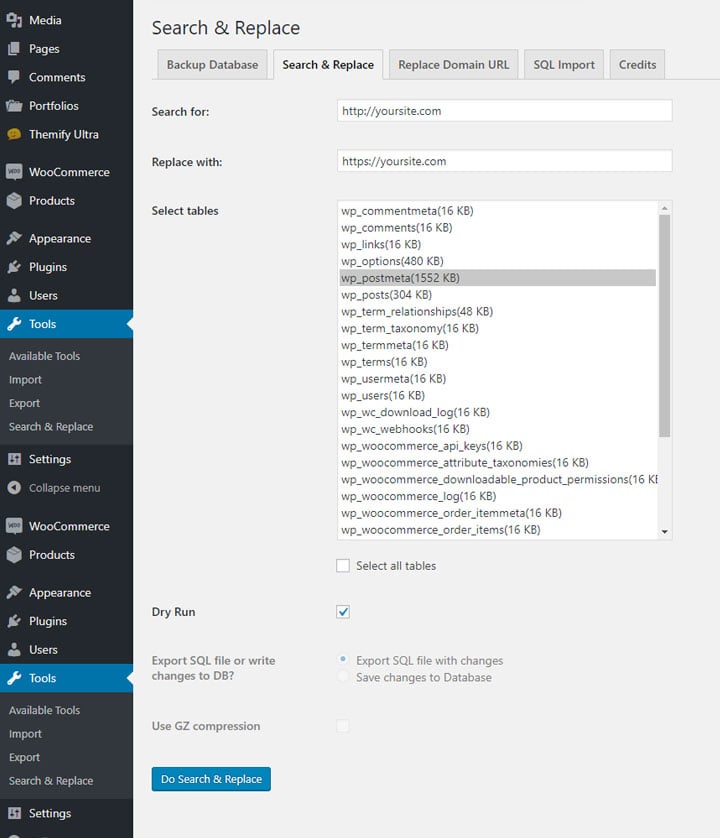
- The plugin settings can be found in Tools > Search and Replace.
- Click "
Search & Replace"Tab. - In the list of tables, just check “wp_postmeta”.
- Please note that wp_postmeta is the database table used to store data.
- If you only select the wp_postmeta table, it will only affect the data in the postmeta table.
- If you want to replace data in the entire database, choose Select all tables.
- In the Search for: field, enter the text you want to search for.
- In the Replace with: field, enter the text you want to replace.
- For example, if you want to replace all website URLs with https, you would enter your domain name in the "Search:" field (e.g. "http://yourdomain .com") and enter your https domain name (for example, "https:// yourdomain .com") in the "Replace with:" field.
- You can replace almost any text data in the database, but this tutorial only shows how to replace URLs.
- Click "
Dry Run(Test run)" to test. The test run will show what will be replaced. - After confirming that the test run results are correct, uncheck "
Dry Run(Test run)”, select “Save changes to database",then click"Do Search & Replace. "
- You are done!
I hope you found this guide useful and that you found it interesting and useful.
If you found this guide helpful, please share in the comments below what topics you’re looking forward to in future guides.
I wish you a happy use!
Hopefully, the article "How to Change All WordPress Database URLs to HTTPS? Install the Search & Replace Plugin" shared on Chen Weiliang's blog ( https://www.chenweiliang.com/ ) will be helpful to you.
Feel free to share this article's link: https://www.chenweiliang.com/cwl-31784.html