
Article directory
After PuTTY logs in, what happens when SSH prompts login as?
After PuTTY logs in, the prompt "login as:" is displayed, please enter your user name (admin user name root), and then press the Enter key;
A password prompt appears, please enter the SSH password directly. At this time, the password or asterisk will not be displayed. You can enter it directly, and then press the Enter key to log in successfully!
Login without passwordCentOS
The following are the steps to set up PuTTY to log in to a Linux server using a private key:
1) PuTTY→Session: Fill in Host Name (Or IP Address)
2) PuTTY→Connection→Date: Fill in Auto-login username (automatic login username)
3) PuTTY→Connection→SSH→Auth: Select the authentication private key file in Private key file for authentication
4) Go back to PuTTY→Session: Saved Session, fill in the name to save, and then double-click the name to log in directly
5) You can log in to Linux without a password in the future, please remember to save your Private key key file.
PuTTY generates keys
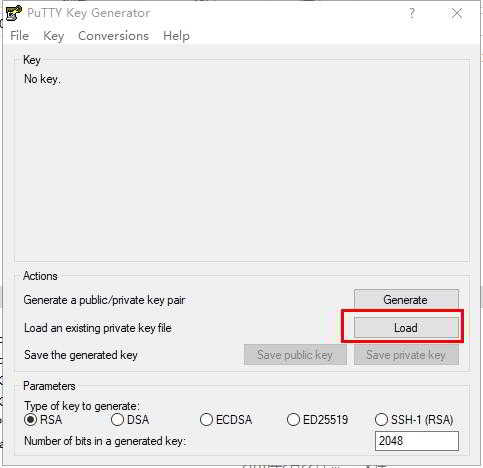
How to generate a key in PuTYY? For detailed instructions, please see this tutorial written by Chen Weiliang ▼
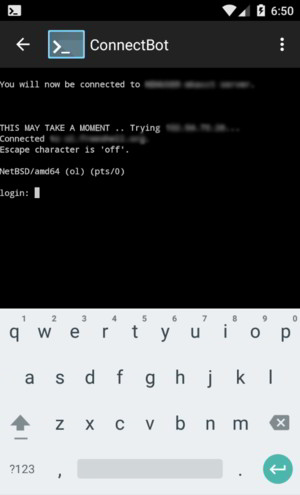
To obtain a remote Linux login tool for your Android phone , please click this link ▼
Hopefully, the article "Why does SSH prompt 'login as' after logging in with PuTTY?" shared on Chen Weiliang's blog ( https://www.chenweiliang.com/ ) will be helpful to you.
Feel free to share this article's link: https://www.chenweiliang.com/cwl-411.html