
Article directory
WordPress has fixed the "Regular maintenance is temporarily unavailable. Please check back later when trying to access your WordPress website" issue.
Have you ever encountered "Briefly unavailable for scheduled maintenance. check back in a minute"mistake?
Errors like this are frustrating, but don't worry!It only takes a few minutes to fix the "Scheduled maintenance is temporarily unavailable. Check back later." error on WordPress.

In this article, we will introduce:
- Why are you seeing the error message?
- How to fix "" on WordPress
Briefly unavailable for scheduled maintenance. check back in a minute"information? - Tips on how to prevent this problem in the future?
What's causing the "Temporarily unavailable for scheduled maintenance" error on WordPress?
Whenever you use the built-in WordPress update system in the dashboard to update the core software , WordPress plugins , or themes, WordPress puts your website into "maintenance mode" so that it can safely update the relevant files.
If you've noticed during the process of updating the WordPress program, WordPress will actually tell you this in your dashboard when it performs the update ▼
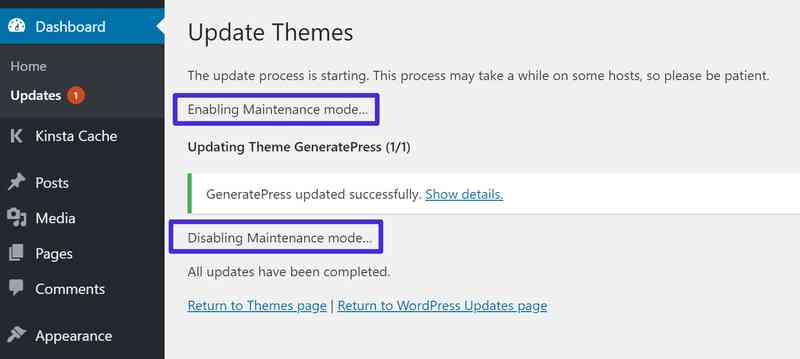
- You can see that WordPress turns on/off maintenance mode.
When your site is in maintenance mode, anyone trying to access your WordPress site will see "Briefly unavailable for scheduled maintenance. check back in a minute"Message▼

- "Scheduled maintenance is temporarily unavailable. Please check back later" message.
So actually, the message itself is not an error, it should only be there for a short period of time.
Typically, WordPress seamlessly enables maintenance mode, performs an update, and then disables maintenance mode.Most of the time, the process is so seamless that it only takes a few seconds and you won't even notice your website has changed.
However, sometimes your site gets "stuck" into maintenance mode.then"Briefly unavailable for scheduled maintenance. check back in a minute"The message starts to become a problem because it doesn't go away and stops you and others from accessing your website.
There are a number of reasons why your WordPress site might get stuck in maintenance mode, the most common being:
- You closed your browser tab while updating WordPress.
- You're trying to update a ton of different themes/plugins at the same time, and something stalls.
- The update that caused the failure had some compatibility issues.
Thankfully, the fix"Briefly unavailable for scheduled maintenance. check back in a minute” message on WordPress that only asks you to delete a single file via FTP.
How to solve "Briefly unavailable for scheduled maintenance. check back in a minute?
Here are the solutions on how to get your website working again.
To put your site into maintenance mode, WordPress adds a file called .maintenance to the root folder of your WordPress site (this is the same folder as your wp-config.php file).
To get your site out of maintenance mode and get rid of the "Scheduled maintenance is temporarily unavailable. Please check back later" message, all you need to do is delete that .maintenance file.
Here's a step-by-step guide on how to do it...
Step 1: Connect to your WordPress website via SFTP
First, you need to connect to your WordPress site via SFTP using an FTP program.
After connecting to the site, you should be inpublicfolder to see a list of all site files▼
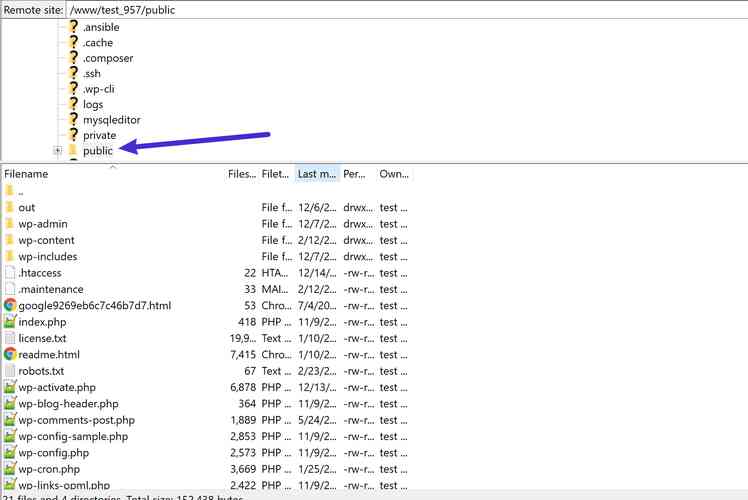
- The .maintenance file is located in the server's "
public" folder.
Step 2: Delete the .maintenance file
Now, all you need to do is delete the file named .maintenance to get your site out of maintenance mode and fix the problem ▼
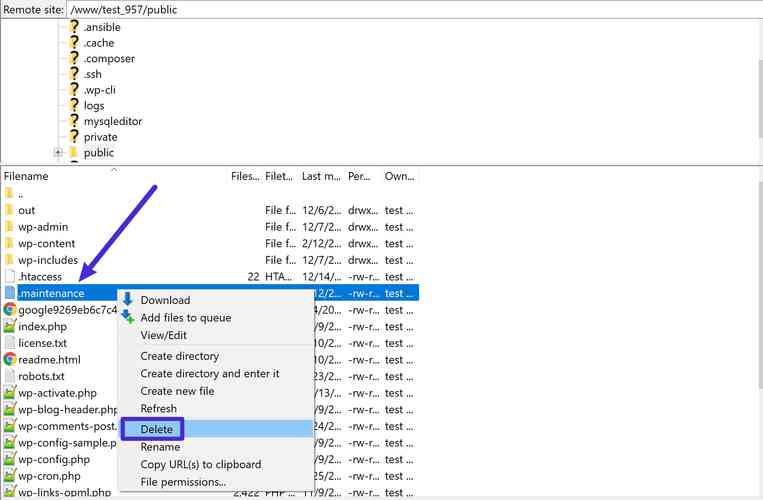
- Delete the .maintenance file, that's it!
- After deleting the files, your WordPress site should start functioning normally immediately.
If you don't see the .maintenance file, you may need to show hidden files.
For example, in FileZilla, click "Servers" at the top, then "Force Show Hidden Files" ▼
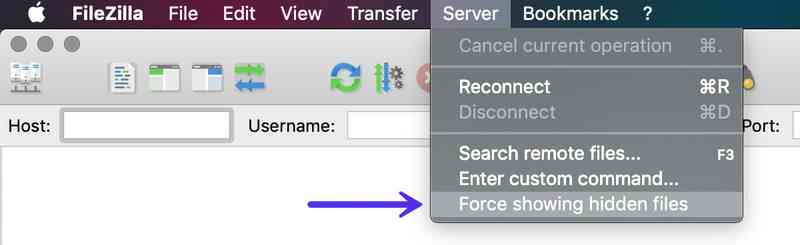
Force show hidden files
How to avoid "Briefly unavailable for scheduled maintenance. check back in a minute?"
Here are some tips to help you avoid this problem in the future.
1. Do not close browser tabs while running WordPress update
Whenever you use the update feature of WordPress, make sure you keep your browser tab open until you see "禁用维护模式...所有更新已完成" message ▼
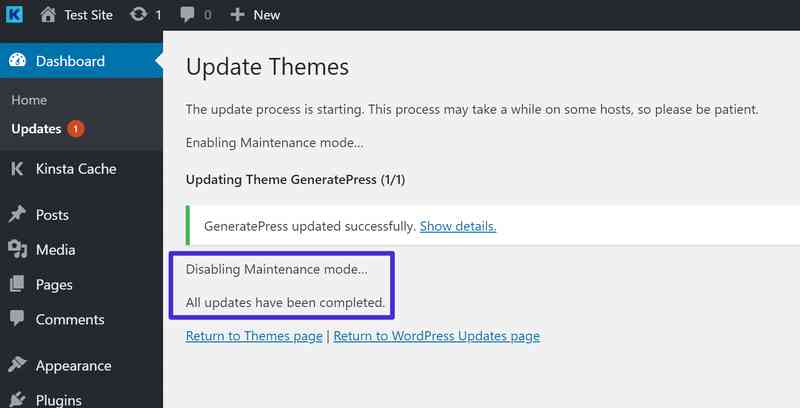
- When you see this message, you can safely close your browser tab.
2. Avoid updating too many WordPress themes and plugins at the same time
- Try to limit the number of updates to run at one time.
- For example, update WordPress themes and plugins as they become available, rather than waiting for them all at once.
- In addition to reducing the chance of getting stuck in maintenance mode, updating your website regularly is often a great way to keep your site secure and functioning properly.
3. Make sure the theme and plugin are compatible
Before you run any updates, make sure the theme or plugin you are updating is compatible with the version of WordPress you are running.
You can quickly check WordPress plugin and theme compatibility by clicking the View Details link▼
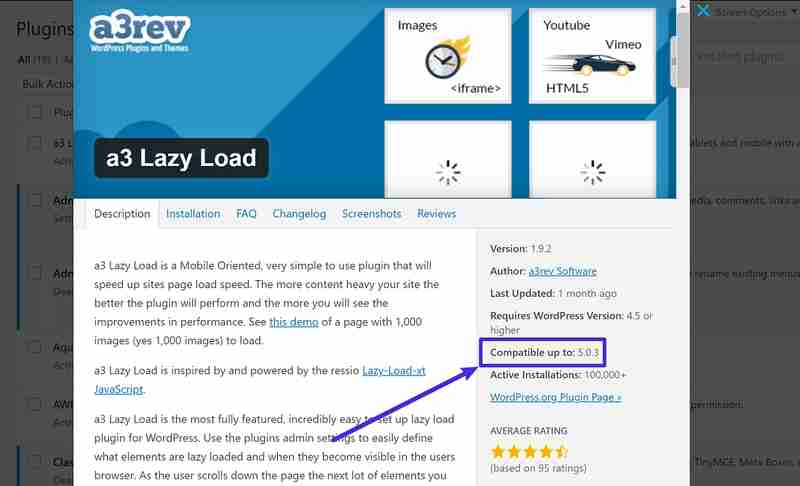
- Check WordPress plugin or theme compatibility.
Extended reading:
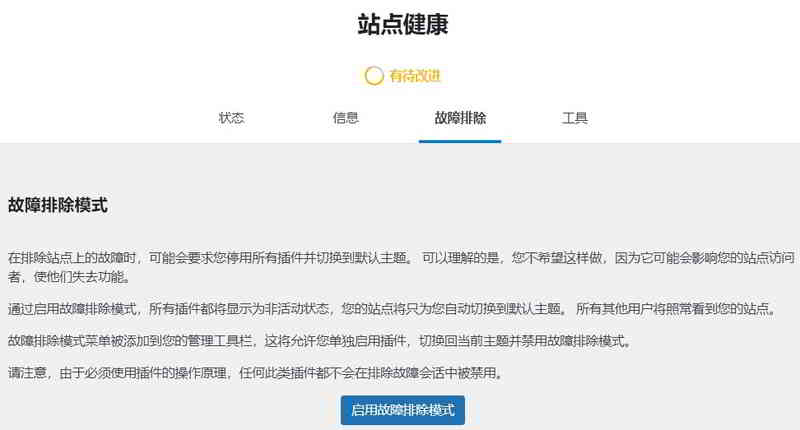

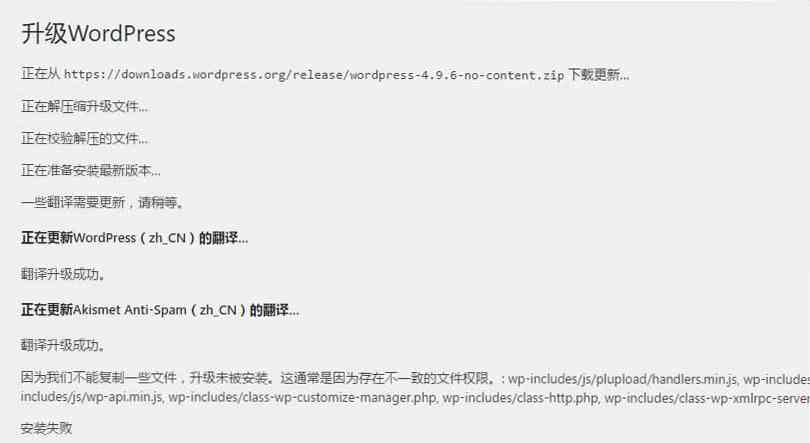
Hopefully, the article "WordPress Fix: Briefly Unavailable for Scheduled Maintenance" shared on Chen Weiliang's blog ( https://www.chenweiliang.com/ ) will be helpful to you.
Feel free to share this article's link: https://www.chenweiliang.com/cwl-26438.html