
Migrating a WordPress website to a new hosting space requires changing the server path. This typically involves repeatedly searching and replacing keywords through the phpMyAdmin database management interface, a tedious and error-prone process…
To address these issues, Chen Weiliang summarized the following "WordPress Website Quick Migration Process".
WordPress website fast moving process
1) Back up your WordPress site
Whether you are moving or renovating your house, backup is the first step! Use your favorite backup plugin or back up all your files and databases manually.
2) Upload website files to the new server
Download the website backup remotely via SSH, or use an FTP tool (such as FileZilla) to upload your backed-up WordPress files to the corresponding directory of the new server.
3) Importing a MySQL database via SSH ▼

4) Achieve seamless migration of WordPress website by modifying the host file of Windows computer.
This is the "navigation" step of the move, telling your computer how to find its new home. Here's how:
- Open Notepad (administrator privileges required).
- Search for "Notepad" in the Start menu, right-click, and select "Run as administrator".
- Open the hosts file: In Notepad, click "File" -> "Open".
- Input Path
C:\Windows\System32\drivers\etc\hostsand press "Enter". - Add the new server's IP address and your new domain name. On the last line of the file, enter:
新服务器的IP地址 www.chenweiliang.com - Save and close the file.
5) Troubleshooting WordPress website migration errors: Too many redirects have occurred. Try deleting your cookies. ERR_TOO_MANY_REDIRECTS ▼

- Open your browser and enter your new domain name.
- Because you have modified the host file on your local computer, only your browser will access the website on the new server, and others will still access the website on the old server.
- Check that everything is working properly. If everything goes well, you are halfway done!
6) [Renew domain name] Enter phpMyAdmin in the new space and modify the database:
- You need to modify the values of the "siteurl" and "home" fields in the database table wp_options to your new domain name;
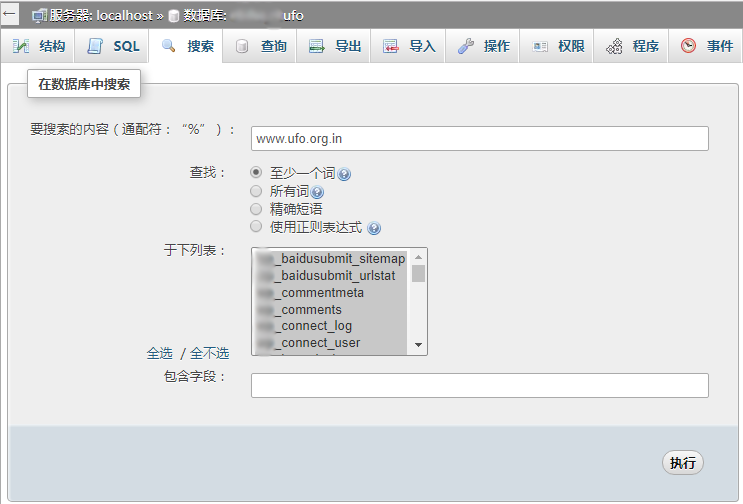
- Search for the old domain name, in the search results, click on the data table wp_options, find and modify the "siteurl" and "home" fields.
7) Search the upload path of the old server:
/home/用户名/public_html/site/chenweiliang.com
8) Modify the value of "upload_path" in the database table wp_options and change it to your new server path
/home/用户名/web/chenweiliang.com/public_html
9) Change the default engine of the MySQL database to MyISAM ▼
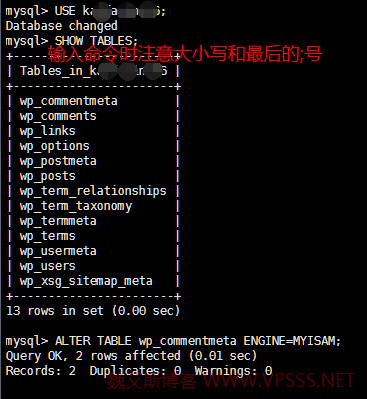
10) Upgrade WordPress permissions Error message: Unable to create directory Copy file Installation failed FTP required ▼
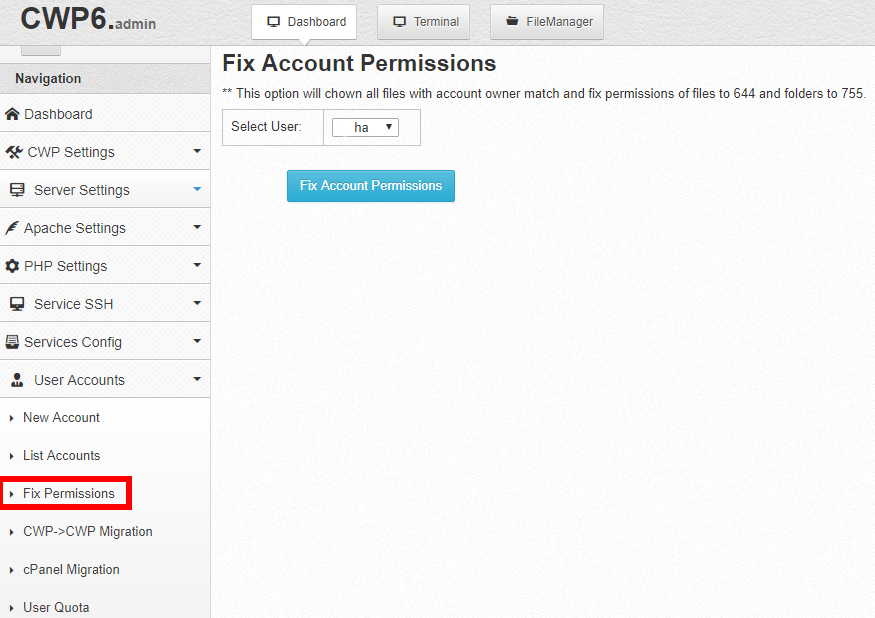
Command line to fix folder permissions ▼
chown -R admin:admin /home/eloha/public_html/chenweiliang.com/*
11) Install and use the Search & Replace plugin ▼
Using the search and replace function in phpMyAdmin can easily lead to the loss of data saved by many WordPress plugins ...
We recommend using the Search & Replace plugin to replace domain names and paths in a MySQL database. ▼
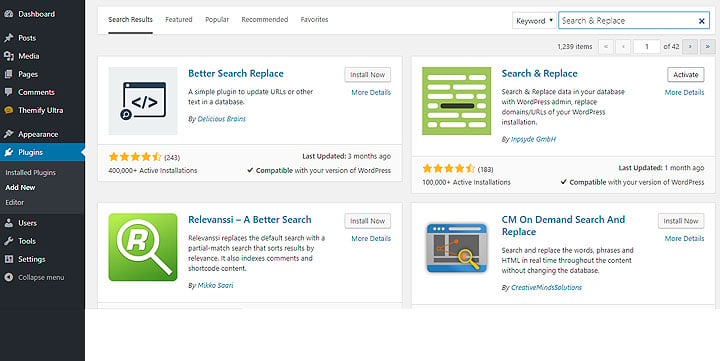
Find ▼
/home/用户名/public_html/site/chenweiliang.com
Replace ▼
/home/用户名/web/chenweiliang.com/public_html
12) View BackWPup plugin settings ▼
https://www.chenweiliang.com wp-admin/admin.php?page=backwpupsettings#backwpup-tab-information
- Check whether the paths of the Temp folder and Log folder are writable in the BackWPup plugin settings?
- If it is not writable, please refer to step 5 above to fix the folder permissions.
If the PHP open_basedir problem, please refer to the following tutorial for the solution ▼
13) View/Export wp-keywordlink Plugin ▼
https://www.chenweiliang.com /wp-admin/options-general.php?page=rejected-wp-keyword-link-rejected/wp_keywordlink.php
- Since the data of the wp-keywordlink plugin may be lost after replacing the server path, if you have installed the plugin, be sure to export the data of the plugin before moving.
14) Check for WordPress plugin settings that might malfunction after migrating your WordPress website ▼
- If a blank page appears and cannot be opened after the website is moved, please refer to this article for solutions ▲
15) Update DNS
- Once you've made sure your new website is running properly, log in to your domain registrar's admin panel and update your DNS records to point your domain to the new server's IP address.
- It may take some time for the DNS to update (usually a few hours to 48 hours).
16) Once the DNS update takes effect, you can delete the temporary IP address record in the hosts file.
- Open Notepad again as an administrator and find
C:\Windows\System32\drivers\etc\hostsfile and delete the line you added earlier. - Congratulations, your WordPress website has been seamlessly moved! Now you can sit on the sofa, drink a cup of tea, and enjoy your new website.
17) Notify search engines to update IP addresses▼
18) When the WordPress website updates articles, the following errors may occur:
PHP 查询报错 Error while sending QUERY packet. PID=xxx
The following is the solution▼
Extended reading:
Hopefully, the article "How to Migrate a Website? Seamless Migration and Domain Change Process for WordPress" shared on Chen Weiliang's blog ( https://www.chenweiliang.com/ ) will be helpful to you.
Feel free to share this article's link: https://www.chenweiliang.com/cwl-710.html